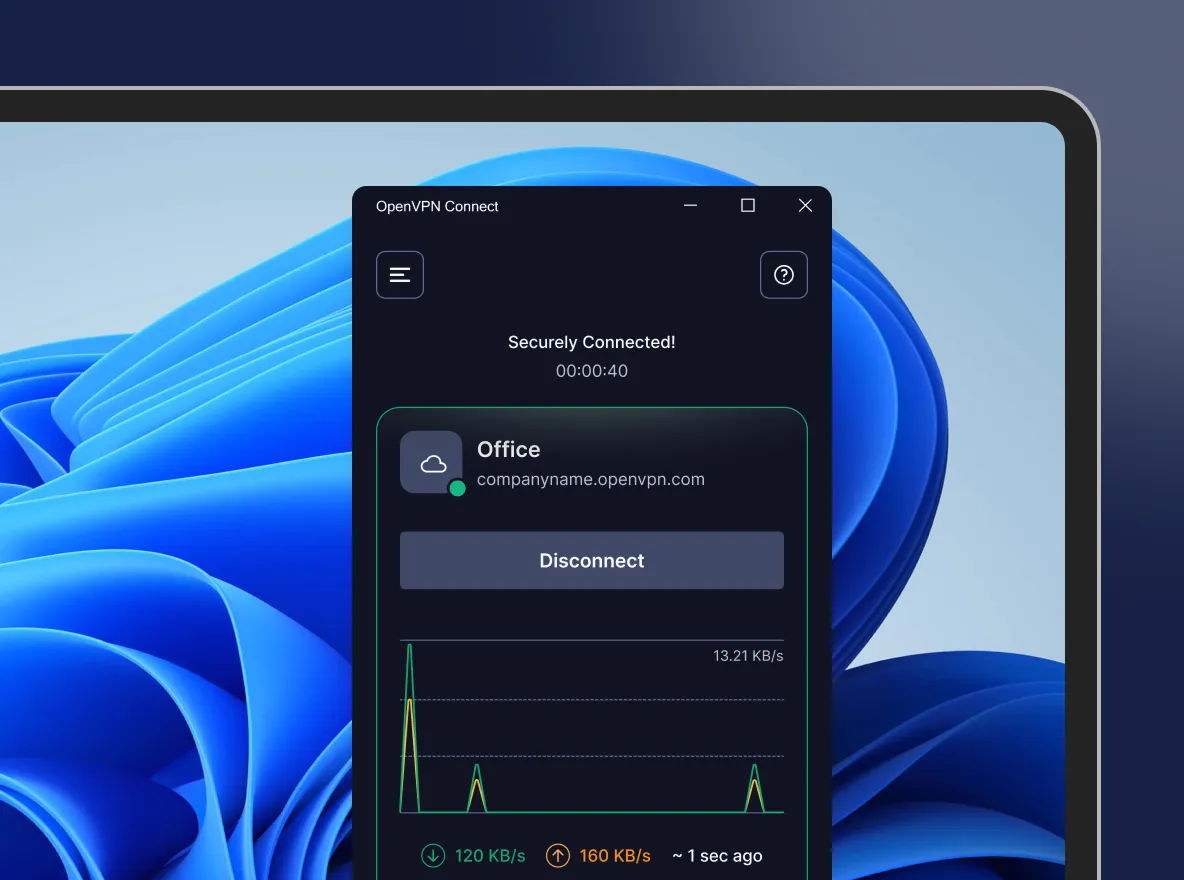
This is the official OpenVPN Connect client software for Windows workstation platforms developed and maintained by OpenVPN Inc. This is the recommended client program for the OpenVPN Access Server to enable VPN for Windows. The latest version of OpenVPN for Windows is available on our website.
If you have an OpenVPN Access Server, it is recommended to download the OpenVPN Connect client software directly from your own Access Server, as it will then come pre configured for use for VPN for Windows. The version available here contains no configuration to make a connection, although it can be used to update an existing installation and retain settings.
sha256 signature: 58973ceba1dfb77ac98977f264b5aebe4ca094c17ada72c4d2767d2a2c7607c5
For Windows 7, 8, 8.1, and 10.
A 32 bits version is also available:
Download OpenVPN Connect v3 for 32 bits
sha256 signature: bfd176271cca8c1e7fae446621a985388bf55d023668af8e5dcec9ec4560dd85
Previous generation OpenVPN Connect V2 is available here:
Download OpenVPN Connect v2.7.1
sha256 signature: f65dd0ea784dd63632be64f89b1f83d51c199fd7319888883780cb9e975c325a
For Windows 7, 8, 8.1, and 10.
Our latest line of OpenVPN for Windows (OpenVPN Connect) software available for the major platforms features a new and improved user interface, making the experience of installing and using the OpenVPN for Windows software a snap. With an easy to use import feature you can import profiles straight from your OpenVPN Access Server or just import a saved profile from disk.
Looking to get started using OpenVPN Access Server on your Windows system?
Yes, you may continue to use both v2 and v3 on the same connect device and import the profiles desired into each. If you like, you can run either one or both.
No, the client cannot connect to multiple servers at once. It does support multiple connection profiles, giving you the option to switch easily from one server to the next, but you can only be connected to one at a time. This is by design, to prevent unexpected traffic paths when connecting to multiple VPN servers at the same time. If you are a system administrator and you require a complex setup where multiple connections are active at the same time, there is the option to use the open source community OpenVPN client software available from our website.
The OpenVPN client v1 was called “OpenVPN Desktop Client” and is no longer available. It is also not safe to use this anymore as it hasn’t been maintained for many years. It was replaced with the OpenVPN client v2. The OpenVPN client v2 is called “OpenVPN Connect Client” and has been in use for many years. It is still available from our website. You can download it from the direct link new the top of this page. The OpenVPN client v3 is called “OpenVPN Connect” and is the latest generation of our software. It is available on our website as a beta version. It is also offered in the OpenVPN Access Server client web interface itself.
This is the official OpenVPN Connect software for Windows workstation platforms developed and maintained by OpenVPN Inc. This is the recommended client program for the OpenVPN Access Server. The latest versions are available on our website. If you have an OpenVPN Access Server, you can download the OpenVPN Connect client software directly from your own Access Server, and it will then come pre-configured for use. The version available here contains no configuration to make a connection, although it can be used to update an existing installation and retain settings.
Layer 2 bridging (TAP) is no longer supported. Switch over to TUN Mode to resolve this issue.
OpenVPN Access Server starts with a self-signed certificate. With this, you will receive warnings from your web browser about the site not being secure as well as a certificate error when importing a profile with the Connect Client. You can simply override the warnings or add an exception for your web browser. To resolve this, you can set up a DNS host name that resolves to the public address of your Access Server and install a valid SSL certificate that corresponds to that DNS host name. Going forward, you would use that hostname to access your server instead of the IP address. This is also the recommended method as validated SSL certificates can only ever function with a valid public DNS hostname.
Your Access Server Hostname is the address at which your Access Server can be reached. For example it could be https://vpn.yourcompany.com/. If a DNS hostname is not set up, it is also possible to specify the IP address where your Access Server. For example: https://55.193.55.55 Your credentials are your username and password. You may need to get that information from your Access Server administrator if you don’t know it.
Title is the name for the profile. It is automatically defined as the username with the hostname or IP address(example: user1@hostname). It differentiates between multiple profiles. You can define it manually as well. The title can be anything you want just so you can see which profile is which.
Choosing this option allows you to import an autologin profile with the address and credentials for your Access Server, then simply start the connection with the tap of a button. You would not need to re-enter credentials each time you connect. The autoprofile itself contains an embedded secure certificate that identifies and authorizes your connection automatically. It is an optional setting on the OpenVPN Access Server that the administrator of the server can choose to make available to you. If you find you cannot import the autologin profile, your administrator may not have allowed autologin through user permissions.
During investigation of a vulnerability called VORACLE, it was found that using compression to make the data that goes through the VPN tunnel smaller, and thus faster, has an adverse effect on security. To learn more about this see our security notification on our website regarding the VORACLE attack vulnerability. In order to protect our customers, we are disabling compression by default. Some servers of the open source variety can be configured in such a way that the client must do compression, or else the client may not connect successfully. In such a case, you should get the server updated to disable compression. But we understand that this is not always possible, and you may need to be able to connect to such a server. In that event you can go into the settings and re-enable compression.
Find everything you need to know to get started with OpenVPN for Windows here:
Release date: 26 August, 2020
Release date: 13 July, 2020
Release date: October 22, 2020
Release date: May 27, 2020
Release date: April 29, 2020
Release date: April 15, 2020
Release date: January 22, 2020
Release date: March 11, 2019
Release date: December 11, 2018
Release date: April 18, 2018
Release date: March 22, 2018