Tutorial: Update DataDog integration for CloudConnexa Log Streaming
DataDog configuration can be done using the Serverless setup in which an AWS Lambda function reads from the AWS S3 Bucket and writes log messages to HTTP(S) DataDog endpoints. This tutorial shows how to keep the AWS Lambda function updated.
Prerequisites
You already have a Lambda function set up per Tutorial: Configure DataDog for CloudConnexa Log Streaming.
Reinstall with the latest version
Reinstall the Lambda function using the latest version by following the steps below:
Navigate to CloudFormation > Stacks on your AWS Console.
Select the DataDog Forwarder stack you used to create the current Lambda function.
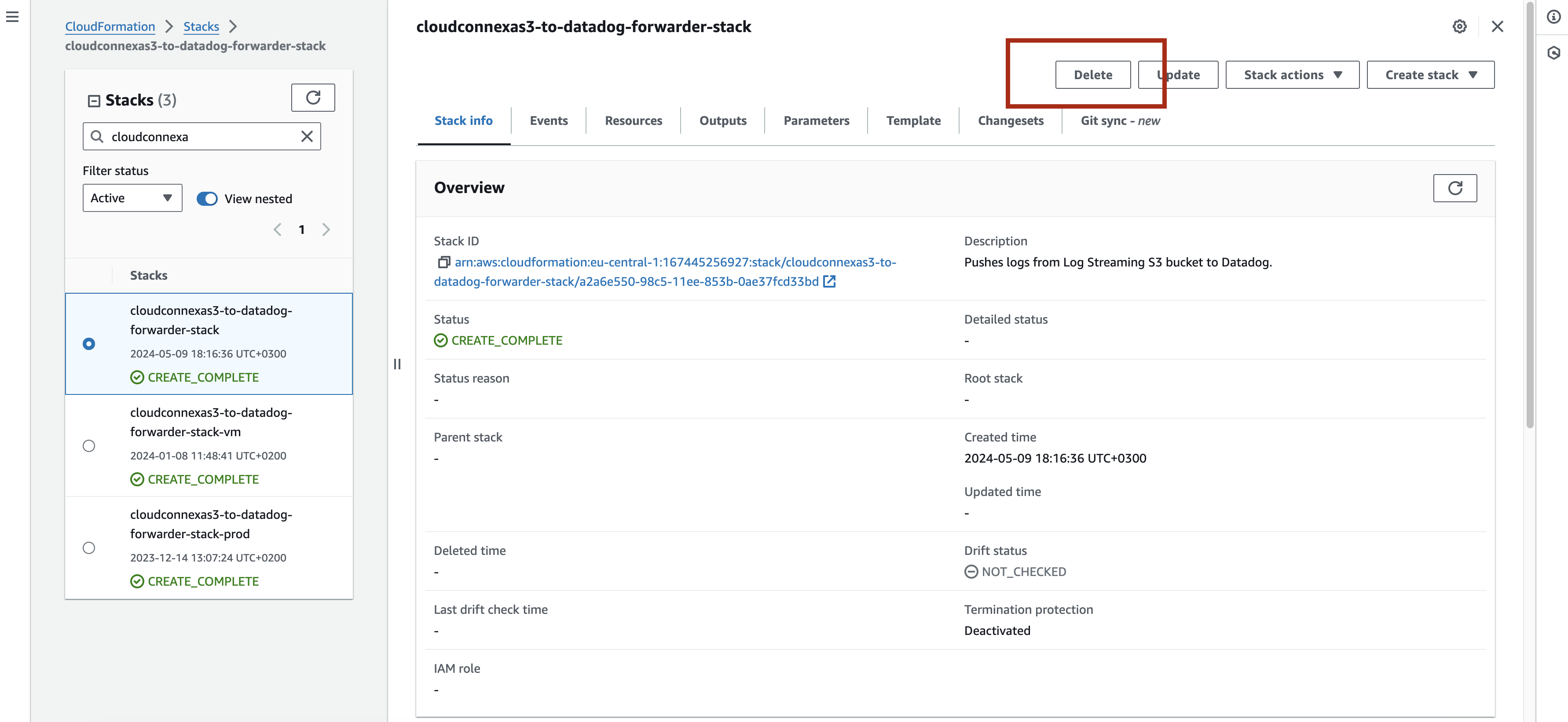
Click Delete.
Install the latest DataDog forwarder as per Tutorial: Configure DataDog for CloudConnexa Log Streaming.
Rollback to the old version
To rollback to the previous version, you need to reinstall the Lambda function using the previous version by following the steps below:
Navigate to CloudFormation > Stacks on your AWS Console.
Select the DataDog Forwarder stack you used to create the current Lambda function.
Click Delete.
Install the latest DataDog forwarder as per Tutorial: Configure DataDog for CloudConnexa Log Streaming but by using the link corresponding to the older version from the table below:
Version
CloudFormation Link
1.1.2 (latest)
https://cloud.openvpn.com/log-streaming/cloudformation/datadog?version=1.1.21.1.1
https://cloud.openvpn.com/log-streaming/cloudformation/datadog?version=1.1.11.1.0
https://cloud.openvpn.com/log-streaming/cloudformation/datadog?version=1.1.01.0.0
https://cloud.openvpn.com/log-streaming/cloudformation/datadog?version=1.0.0
Test
Navigate to API & Logs > Log Streaming and click Send Test Message.
Screenshot of Log Streaming showing the 'Send Test Message' button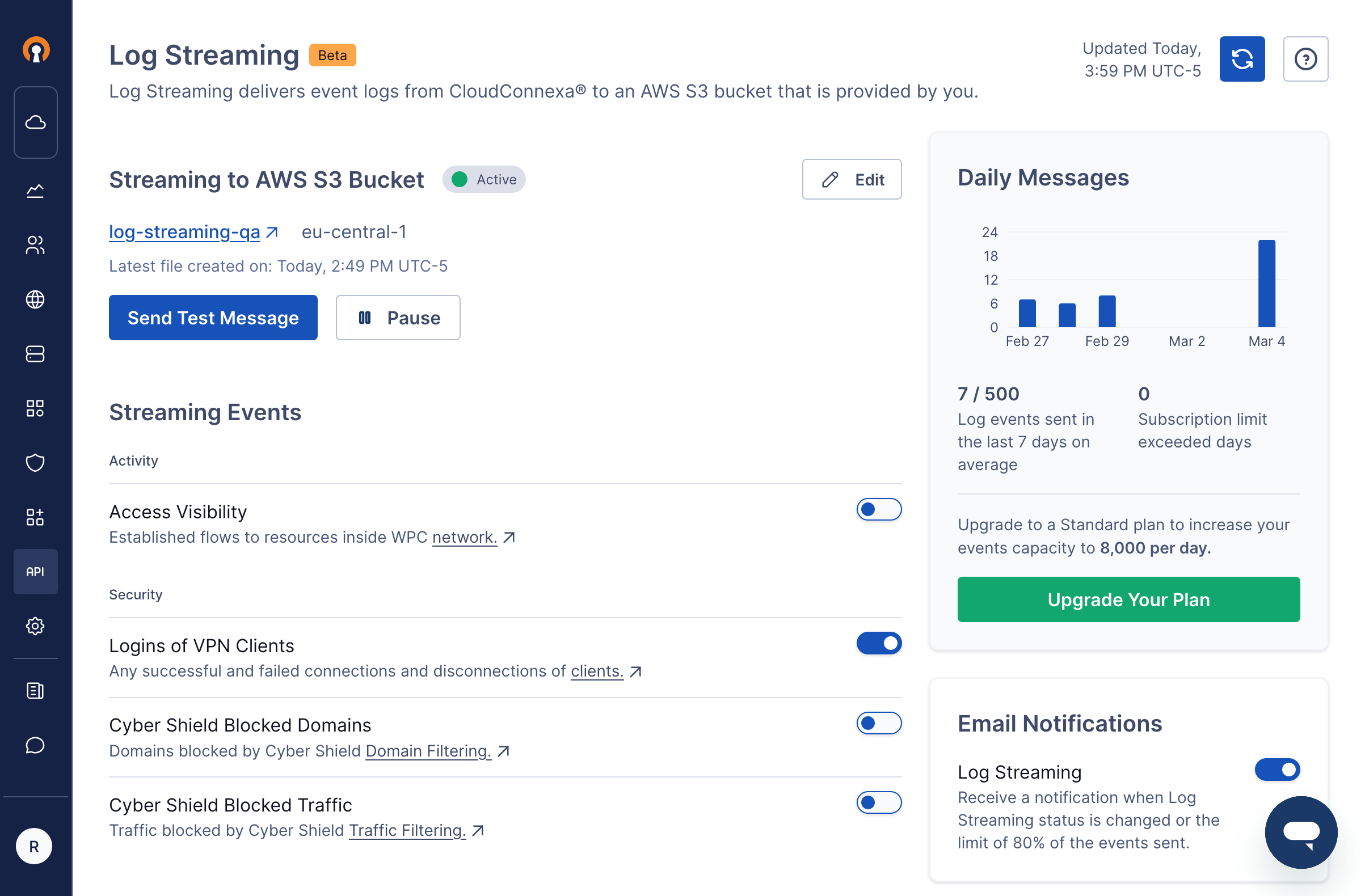
Check that a log file is written to your AWS S3 bucket in response to requesting that a test message be sent in the prior step. The log will appear as
<S3Bucket>/CloudConnexa/<account id>/<hexid>-<YYYY>-<MM>-<DD>-<HH>-<MM>-<xxxx>.jsonl.gzScreenshot of log files in the AWS S3 bucket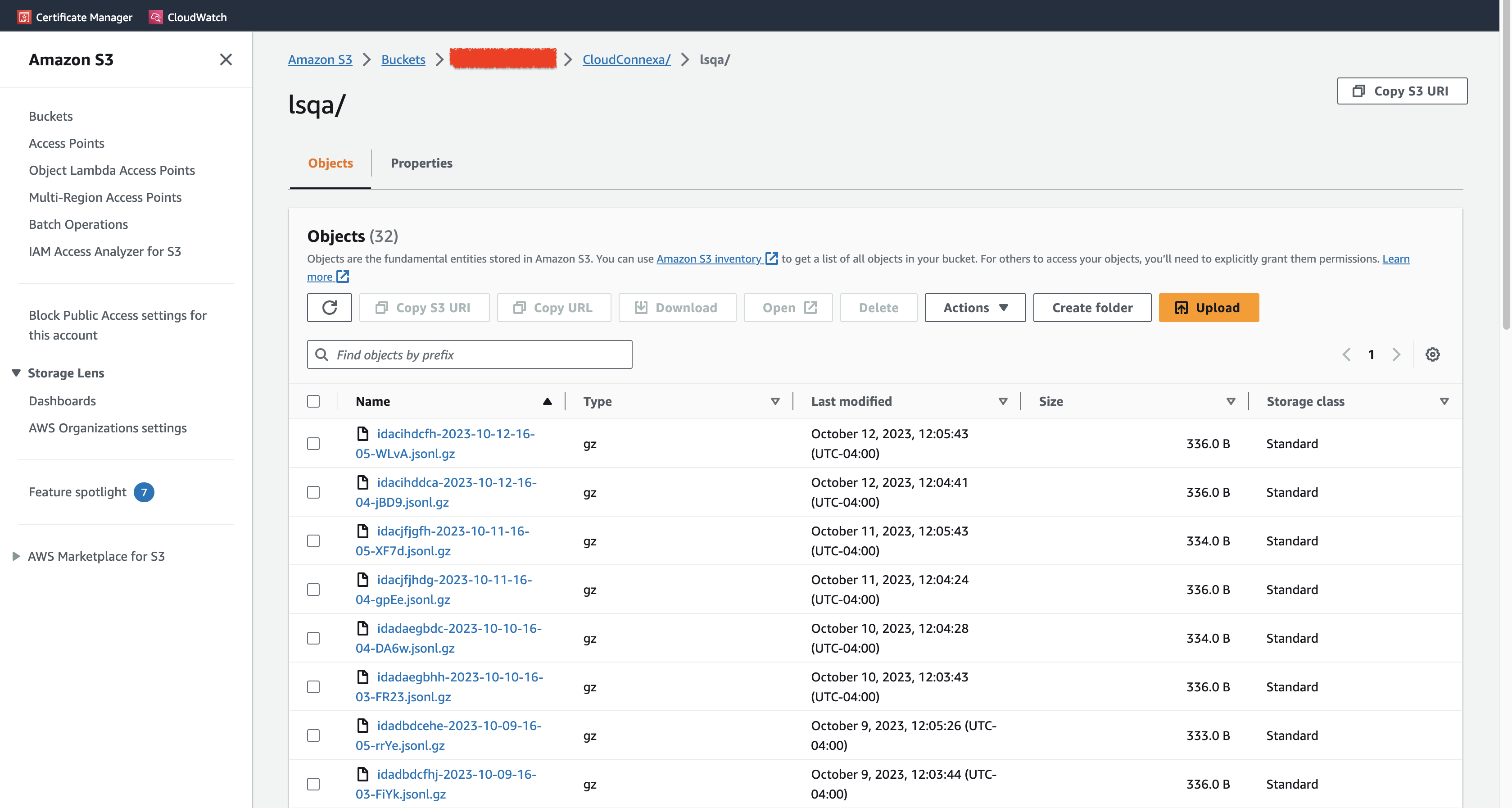
Events from the
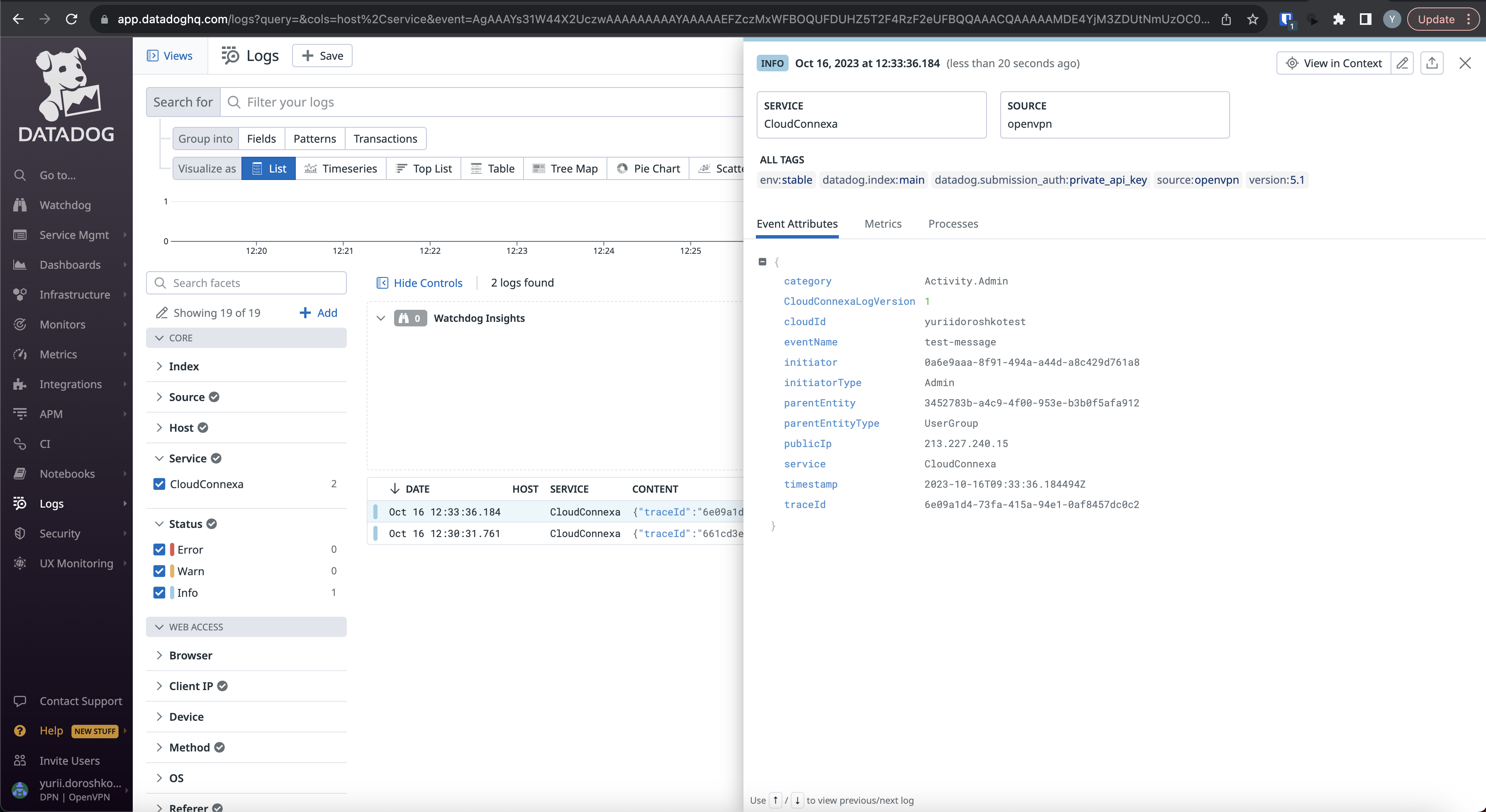
*.jsonl.gzfiles are parsed by the Lambda function and sent to DataDog. You can find it in the Logs section.Screenshot of a parsed event in DataDog