
Tutorial: Configure Splunk for CloudConnexa Log Streaming
Use the Splunk AWS add-on to ingest the log files present in your AWS S3 bucket.
Prerequisites
Your AWS S3 bucket is configured as per Tutorial: Configure AWS S3 bucket for CloudConnexa Log Streaming
Your AWS S3 bucket is configured in the Log Streaming section of the CloudConnexa Administration Portal without errors.
Configure
Download and install the AWS add-on for Splunk from Splunkbase. You can find the add-on here.
Configure the add-on to use generic S3 input. Refer to Splunk documentation.
After configuring S3 generic input, Splunk will scan the bucket periodically, parse files, and save them in the configured index.
Test
Navigate to API & Logs > Log Streaming and click Send Test Message.
Screenshot of Log Streaming showing the 'Send Test Message' button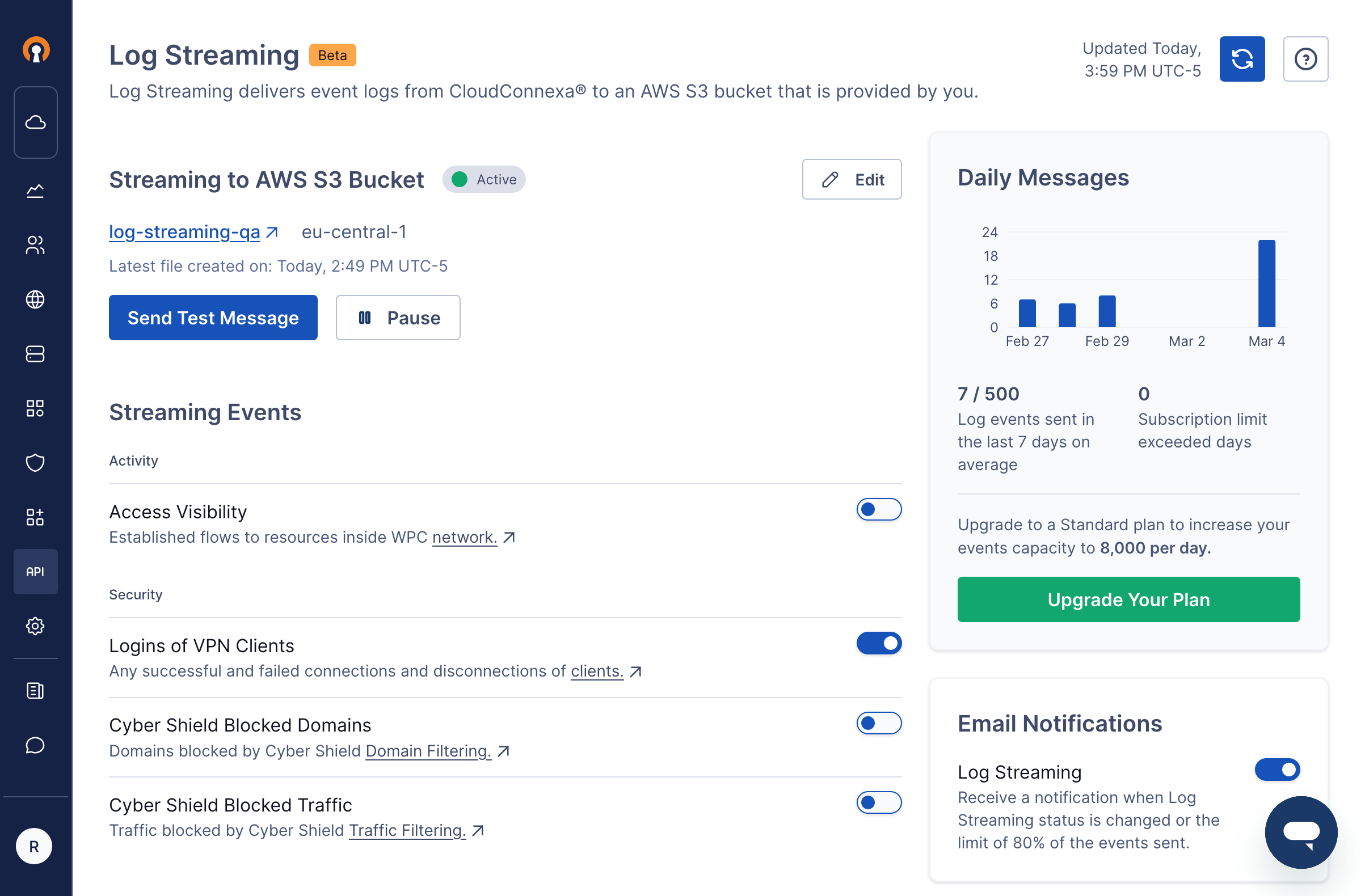
Check that a log file is written to your AWS S3 bucket in response to requesting that a test message be sent in the prior step. The log will appear as
<S3Bucket>/CloudConnexa/<account id>/<hexid>-<YYYY>-<MM>-<DD>-<HH>-<MM>-<xxxx>.jsonl.gzScreenshot of log files in the AWS S3 bucket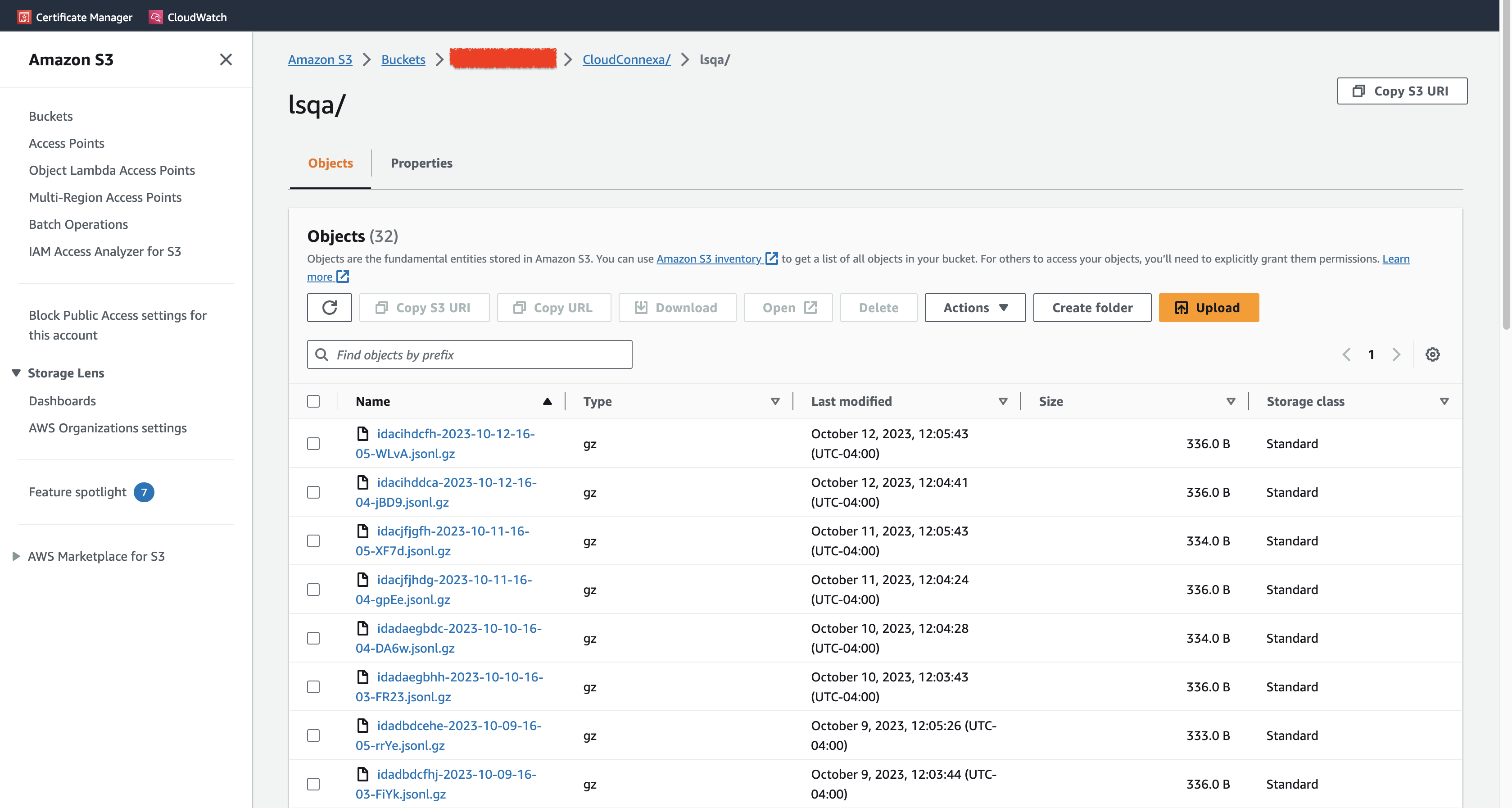
Log events from the file are parsed and should be visible in Splunk.