
Invitee Approves Access To Shared Application
The invitee to the shared application can approve access directly from the invitation email or when they log into the Administration portal.
Using the Email Invitation To Approve
Follow these steps to approve access to the shared application. These steps assume that you are not already logged into the Administration Portal:
Open the received invitation email. Refer to Share invitation received
Click Approve the invitation.
If you are not an Owner/Administrator of a WPC, the default web browser will open to the sign-up page for CloudConnexa.
Continue with sign-up. Refer to Sign Up as an Owner
After you enter a Cloud ID for your new WPC, you will be taken to the Administration Portal.
The Administration Portal will show the App Client tab of AppHub with the shared application in the Approved Apps section, as shown in the screenshot below.
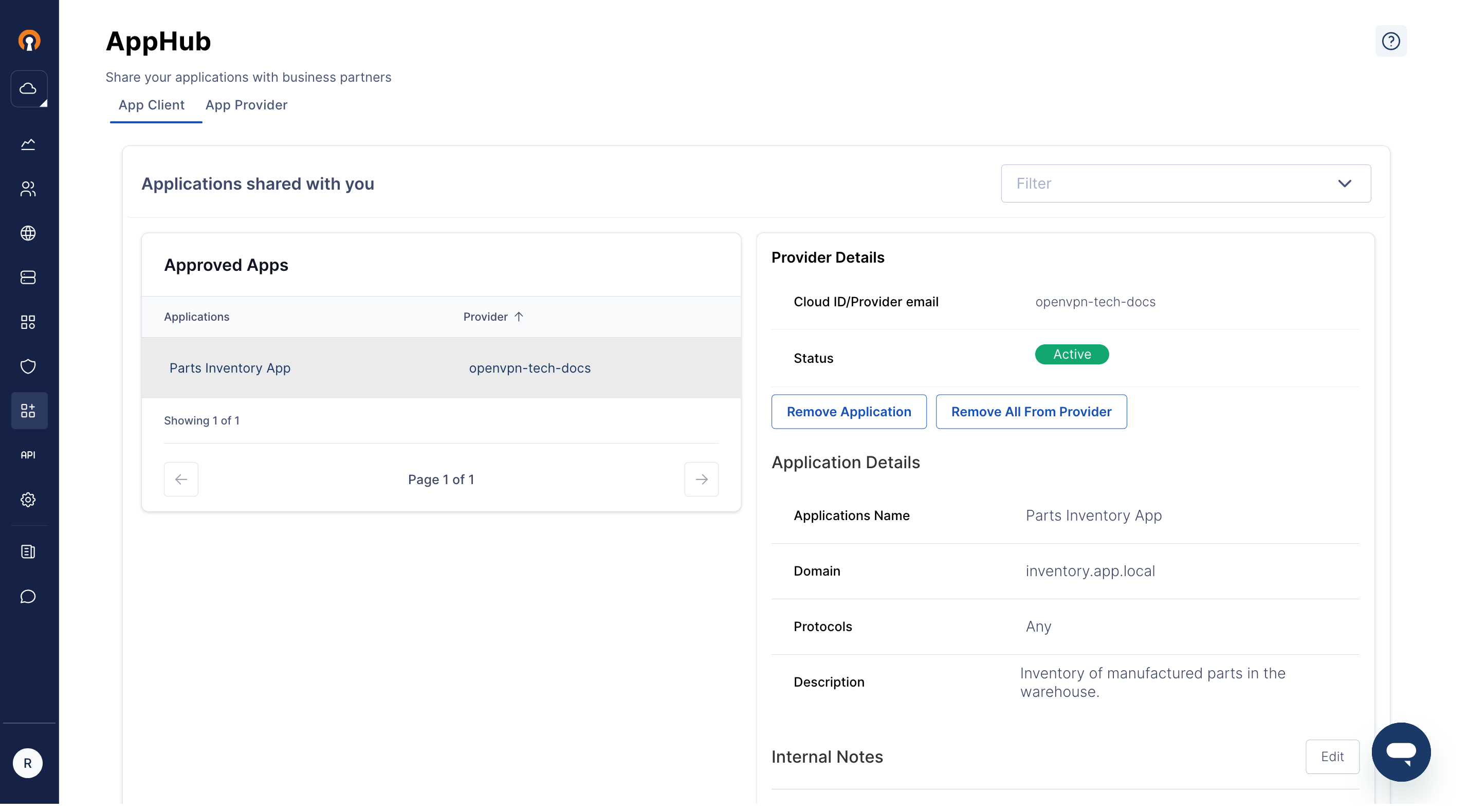
If you are an Owner/Administrator of a WPC and the App Provider used the Cloud ID of your WPC to send the invitation, the default web browser will open to the CloudConnexa sign-in page for that WPC.
On sign-in, the Administration Portal will show the App Client tab of AppHub with the shared application in the Approved Apps section, as shown in the screenshot above.
If you are an Owner/Administrator of one WPC and the App Provider used your email to send the invitation, the default web browser will open to the CloudConnexa signup page for your WPC.
On sign-in, the Administration Portal will show the App Client tab of AppHub with the shared application in the Approved Apps section, as shown in the screenshot above.
If you are an Owner/Administrator of multiple WPC and the App Provider used your email to send the invitation, then:
The default web browser will open to the sign-in screen for the Administration Portal that asks for the Cloud ID first. Enter the Cloud ID of the WPC that needs access to the shared Application. After the Cloud ID is provided, the username/password screen is shown for that specific WPC.
On successful sign-in, the App Client tab of AppHub with the shared application in the Awaiting Approval section and the Accept button on the right pane will be shown.
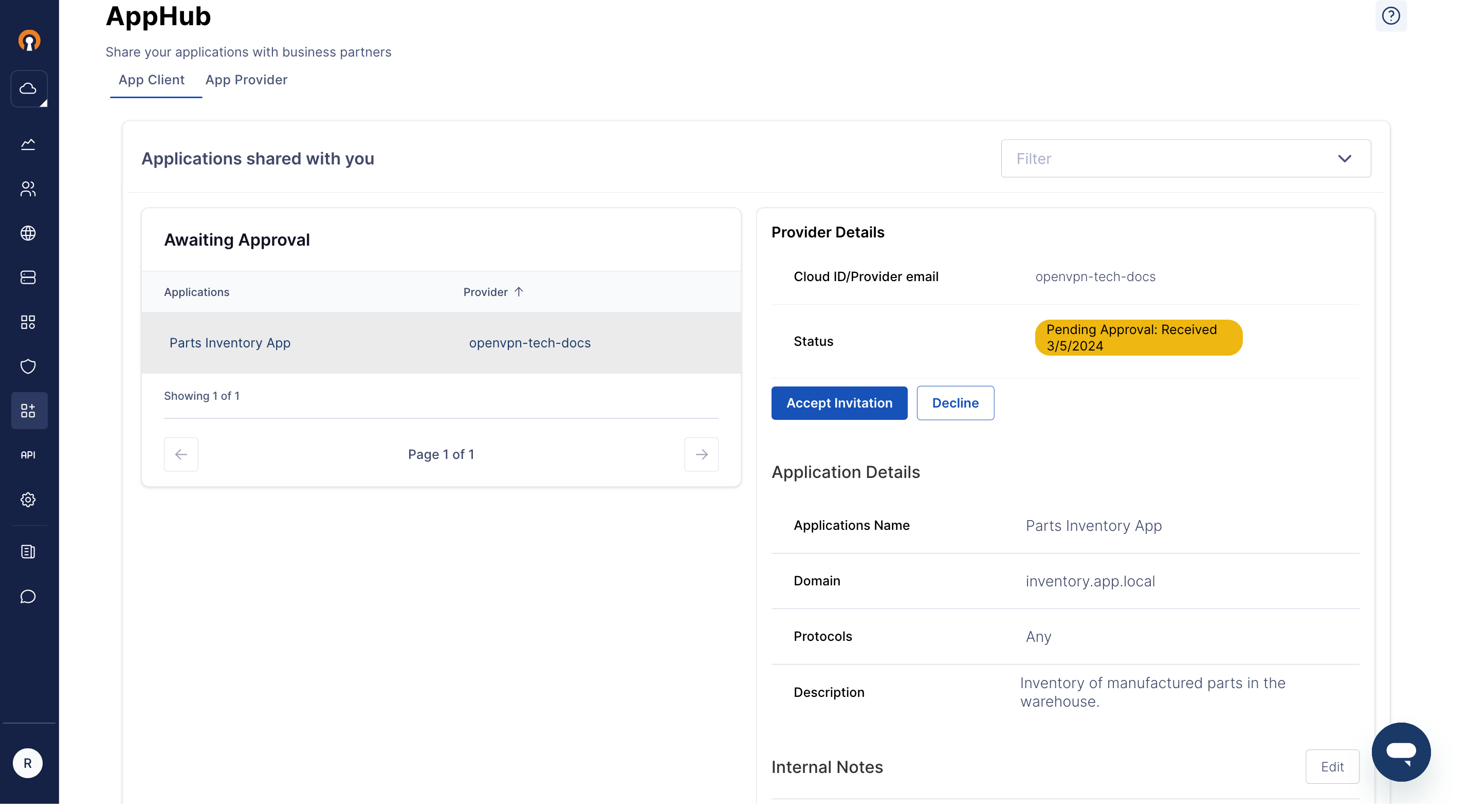
Click Accept
If you are an Owner/Administrator who is already logged into the Administration Portal for the one WPC that you are in charge of, when you click Approve the invitation button in the invitation email, the web browser will open the Administration Portal, showing the App Client tab of AppHub with the shared application showing in the Approved Apps
If you are an Owner/Administrator of multiple WPCs who is already logged into the Administration Portal when you click Approve the invitation button in the invitation email:
The web browser will open and ask you to select one of the multiple WPCs that you own/administer.
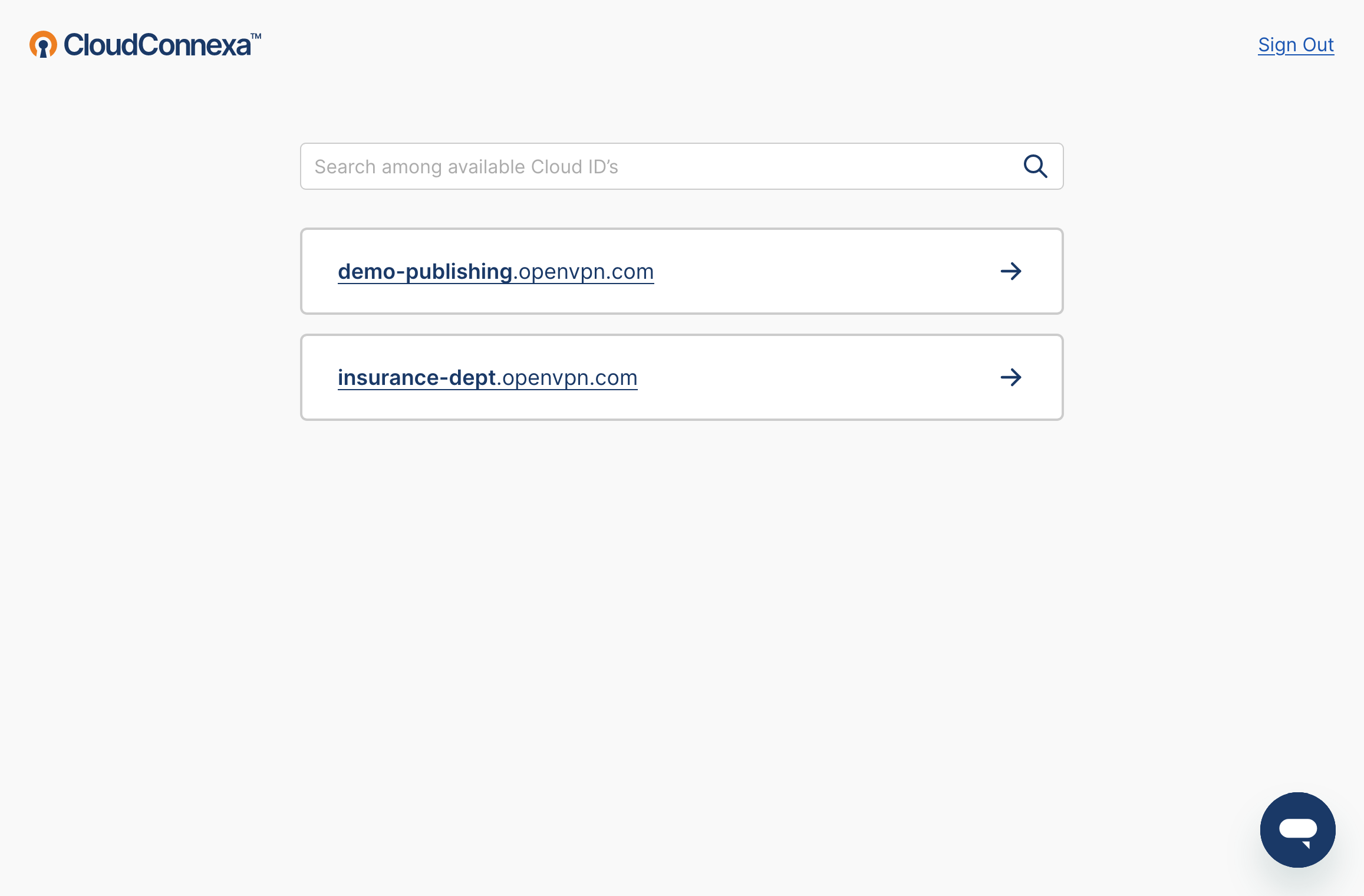
Select the WPC that you want to have access to the shared application.
The Administration Portal of the selected WPC will be shown with the App Client tab of AppHub open. The shared application will be in the Awaiting Approval section, and the Accept button on the right pane will be shown.
Click Accept.
Approval Through the Administration Portal
Follow these steps to approve access to the shared application without clicking the Approve the invitation button in the invitation email:
Sign in to your WPC's Administration portal by entering your Cloud ID in a web browser (for example,
company_name.openvpn.com).Navigate to AppHub
You will see the App Client tab of AppHub open. The shared application will be in the Awaiting Approval section, and the Accept button on the right pane will be shown.
Click Accept