Test Log Streaming
Logs are created regularly when your WPC generates applicable log events. But, to instantly create a test log to check your configuration, follow the steps below:
Sign in to your WPC's Administration portal by entering your Cloud ID in a web browser (for example,
company_name.openvpn.com).Navigate to API & Logs > Log Streaming and click Send Test Message.
Screenshot of Log Streaming showing the 'Send Test Message' button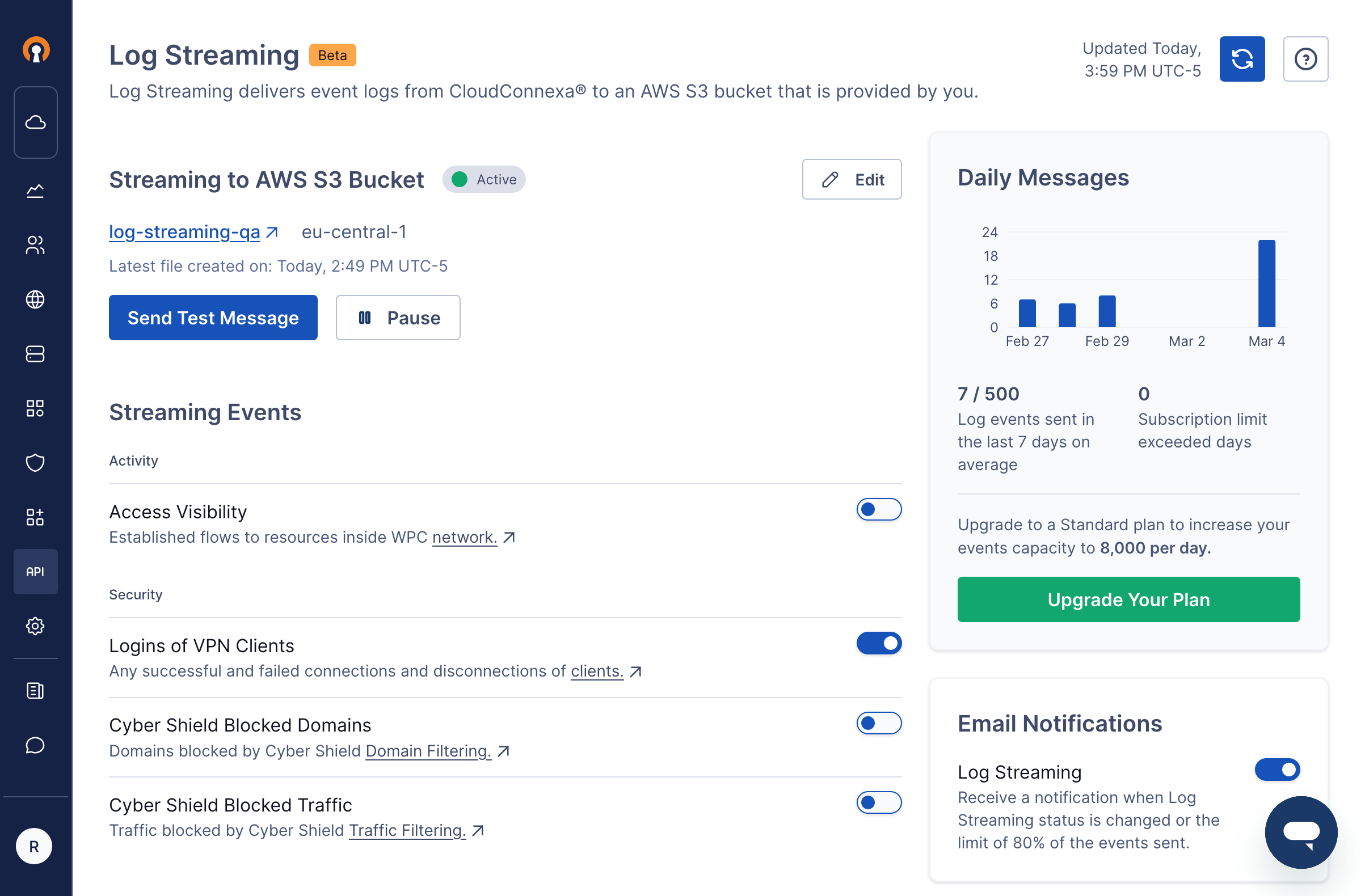
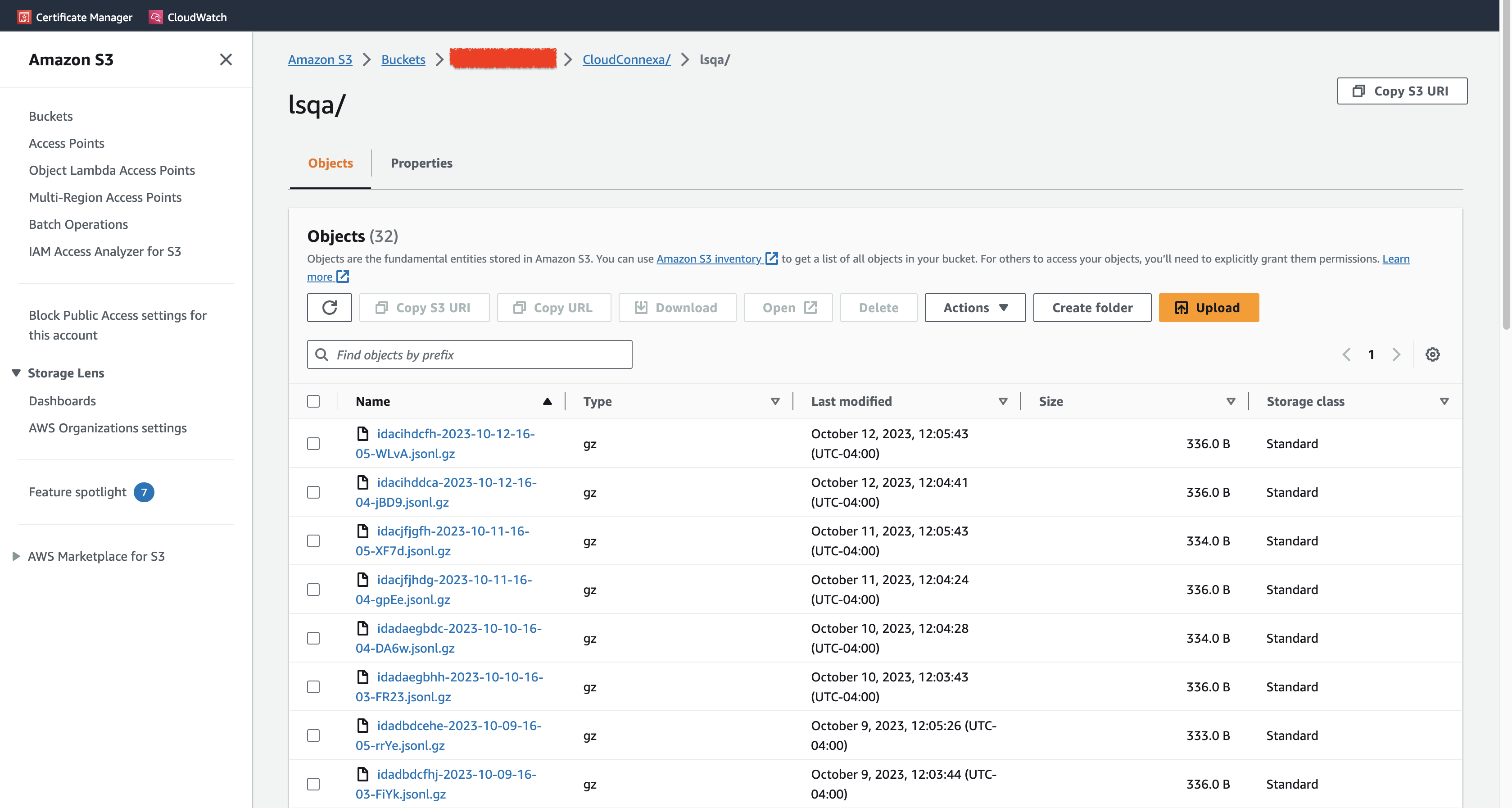
Check that a log file is written to your AWS S3 bucket in response to requesting that a test message be sent in the prior step. The log will appear as
<S3Bucket>/CloudConnexa/<account id>/<hexid>-<YYYY>-<MM>-<DD>-<HH>-<MM>-<xxxx>.jsonl.gzScreenshot of log files in the AWS S3 bucket