
Tutorial: Use CloudConnexa for Remote Access
This guide takes you through the process of providing secure, Remote Access to your private Networks and resources through CloudConnexa. Your private resources can be located on cloud platforms (IaaS) or on-premises or both. You can quickly build a Remote Access solution for your employees who are connecting from various regions around the world.
This illustration shows the high-level view of the secure Remote Access concept. On the left, each User connects to CloudConnexa with the OpenVPN Connect app on their computer, connecting through a secure tunnel to the Region that is closest to their geographic location. On the right, each Connector on your private Network establishes a secure tunnel to the geographically closest Region to make your private Network accessible from CloudConnexa.
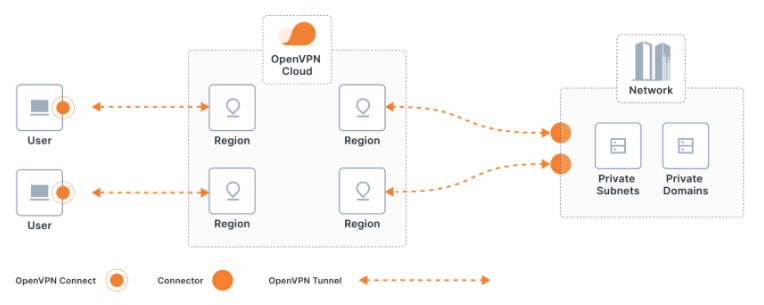
You can easily get your workforce up and running with secure and reliable Remote Access. Here’s an overview of the set up workflow using default settings and with Split-Tunneling on:
Set up your CloudConnexa account.
Access CloudConnexa | Admin Portal and sign up to give it a try with up to three free connections.
Create a Cloud ID that uniquely identifies your WPC — for example,
myopenvpnID.openvpn.com. Your ID lets you administer your WPC Network and download the OpenVPN Connect Client and its configuration Profile. The Connect client also uses your unique ID to get your User Devices connected to CloudConnexa.
Configure your IaaS and on-premises Networks in the CloudConnexa Administration portal.
Access the Networks section and add a new Network — configure the routes to your Network using subnets, domains, or both.
Deploy a Connector on your private Network. You can choose your operating system or compatible router and use the quick launch directly in the portal to deploy the Connector.
More information is available here: Deploy a Network OpenVPN Connector for a Configured Network.
Connect your Users.
You can manually create Users in the Users section of the CloudConnexa Administration portal. When you add Users to your account and include an email address, those Users automatically receive an email with instructions for downloading the OpenVPN Connect client and their connection Profile.
If you don’t include an email address when creating new Users, you’ll need to send those Users the User portal link, username, and temporary password using some other means.
If you set up SAML or LDAP authentication with CloudConnexa, you can let your workforce know that they can use their existing SAML or LDAP credentials to download the Connect app for their Devices and import a Profile using your unique Cloud ID URL.
Refer to these guides for more information: