
Tutorial: Use CloudConnexa for Private Connectivity Between Multiple Sites (Site-to-Site Networking)
Overview
Owen has completed the signup process as shown here. During the signup process, Owen selects technop.openvpn.com as the web domain for the user portal. This domain uniquely identifies the WPC that will be set up by Owen and is used by Connect Client applications to identify the WPC that it needs to connect to.
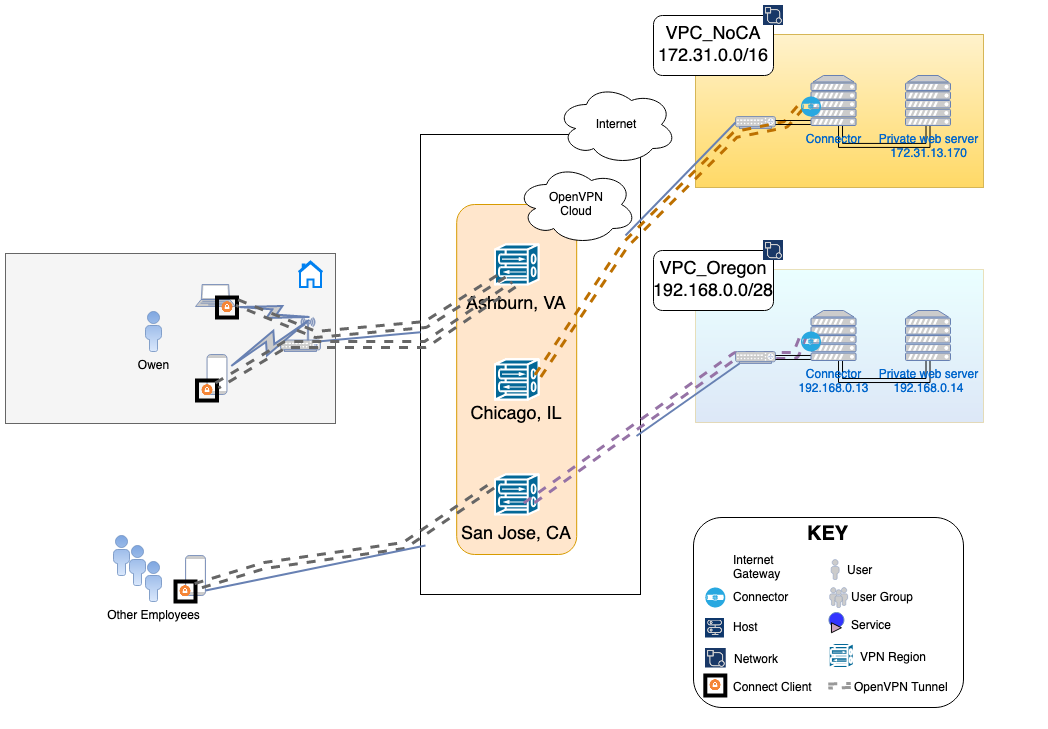
This guide provides a high-level example of creating a full-mesh, site-to-site network across two private networks that are represented by AWS VPCs in separate AWS regions. In this example. the networks hosting private servers and resources are based in Northern California and in Oregon.
Illustration of WPC
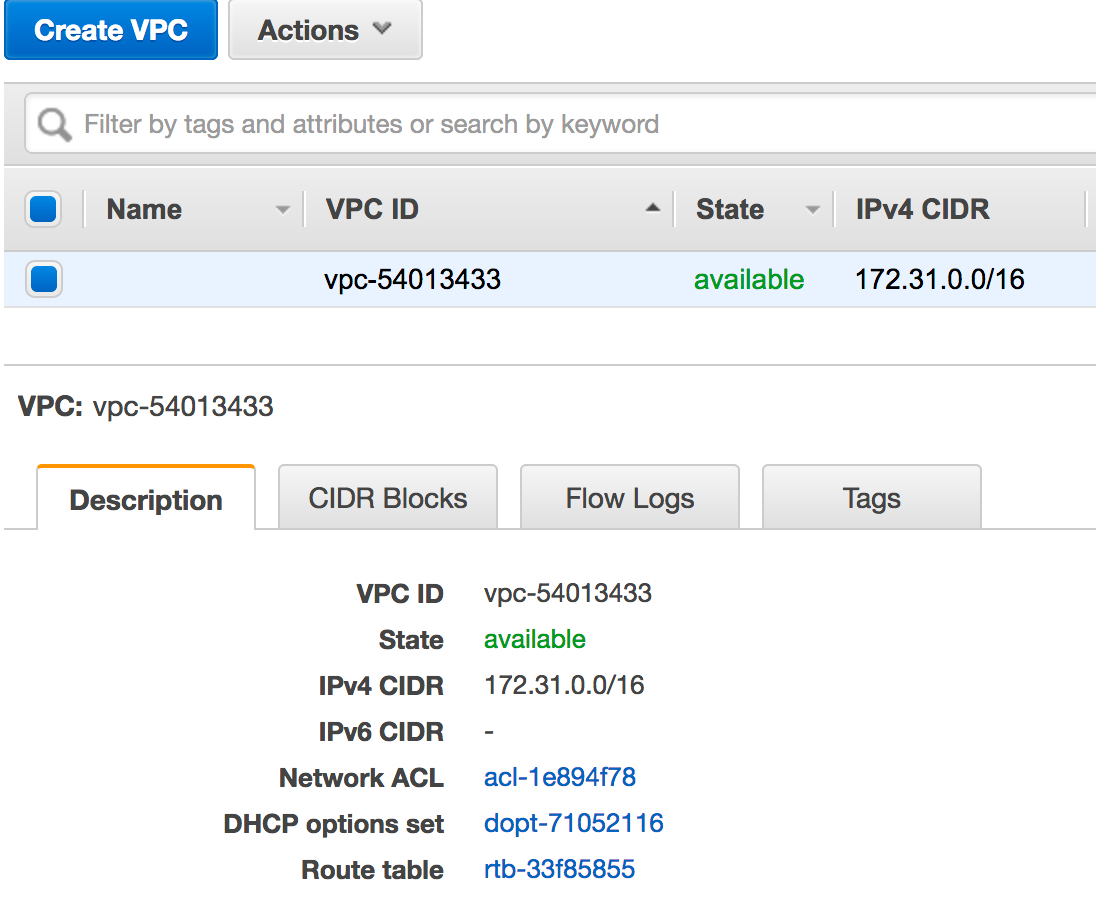
North California Network
North California network is using the 172.31.0.0/16 subnet. Owen needs to configure this as the Network subnet that needs to be available from CloudConnexa.
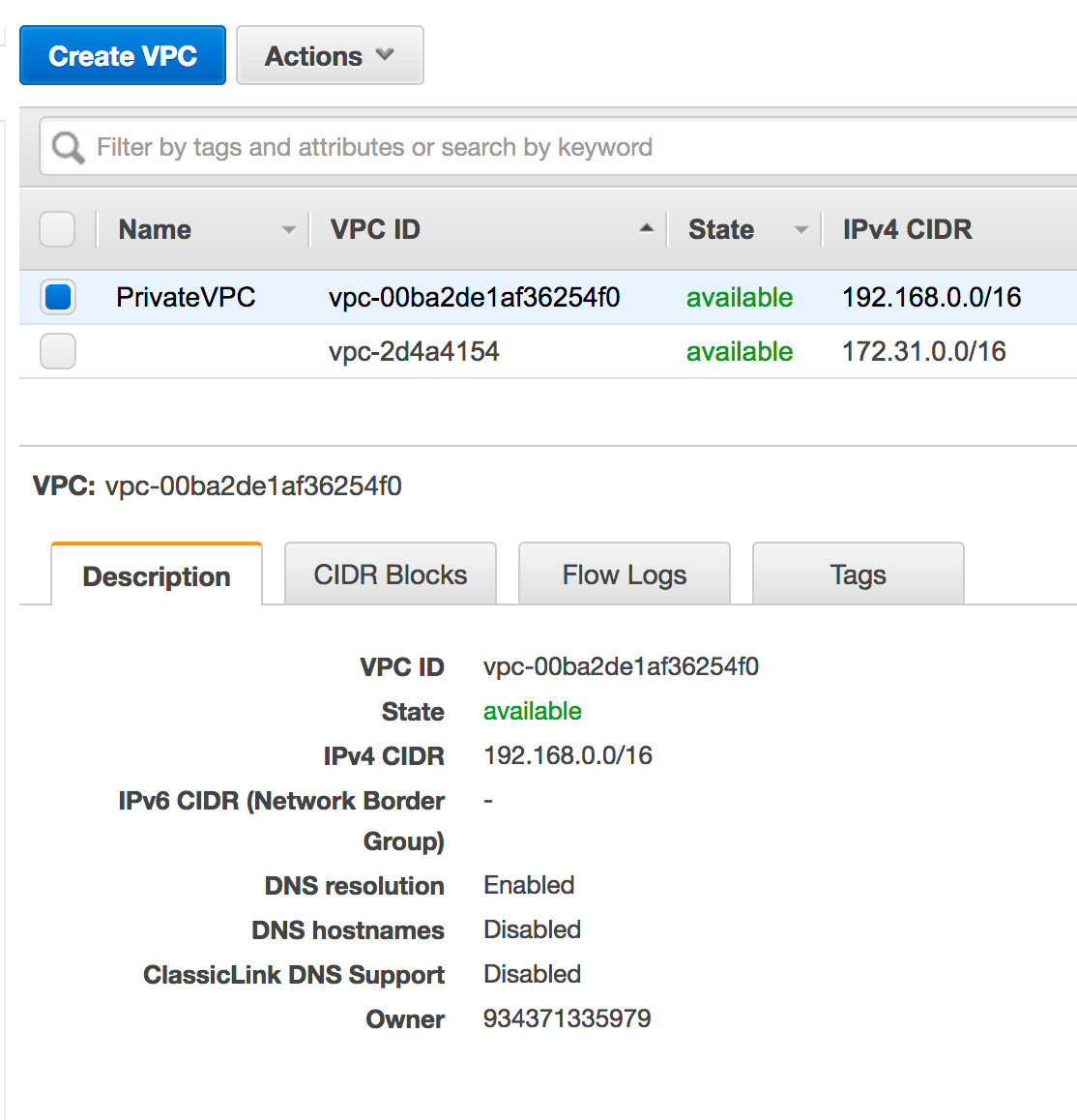
Oregon Network
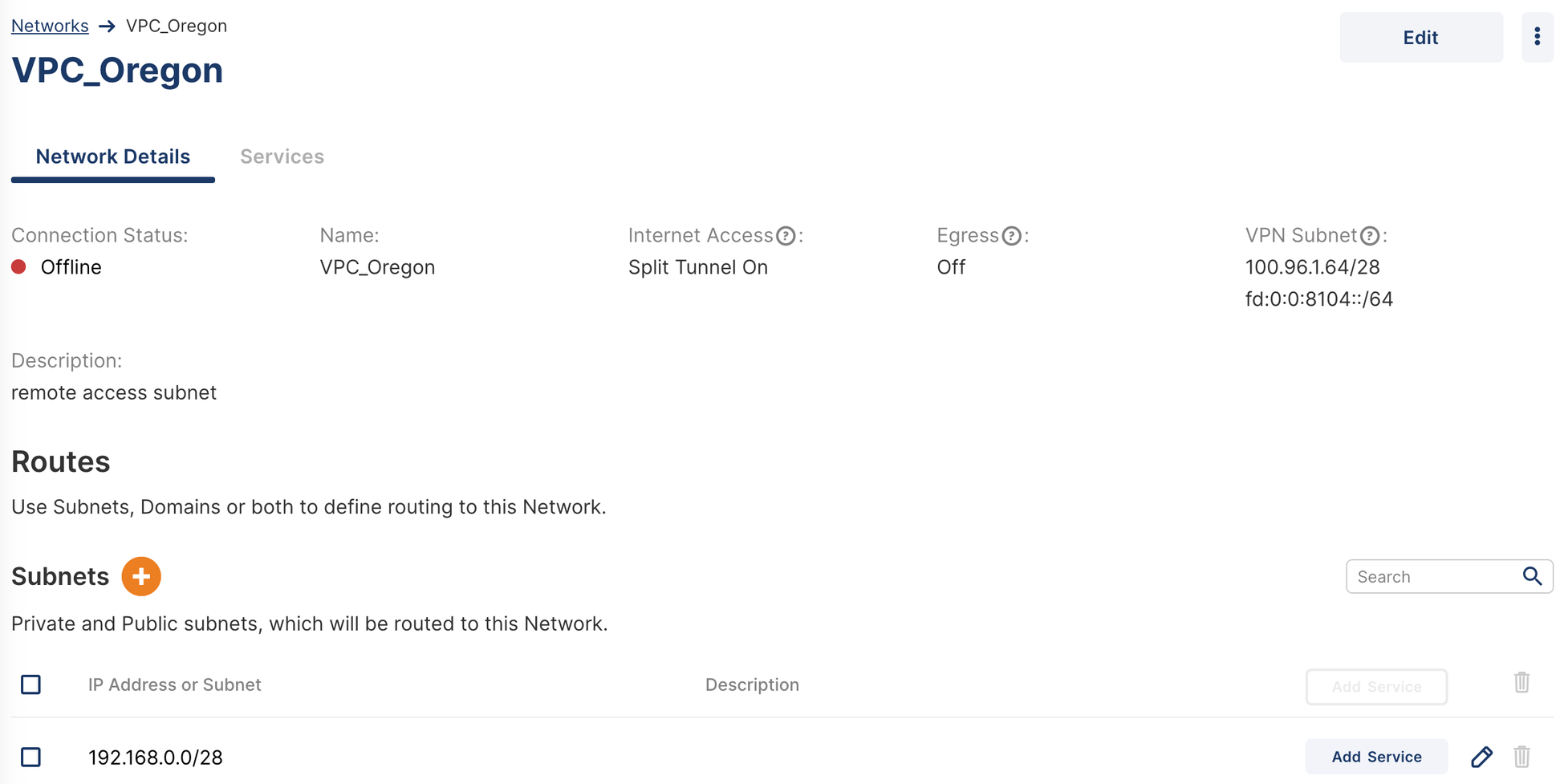
The Oregon network uses the private 192.168.0.0/28 subnet. Owen needs to configure this as the Network subnet that needs to be available from CloudConnexa.
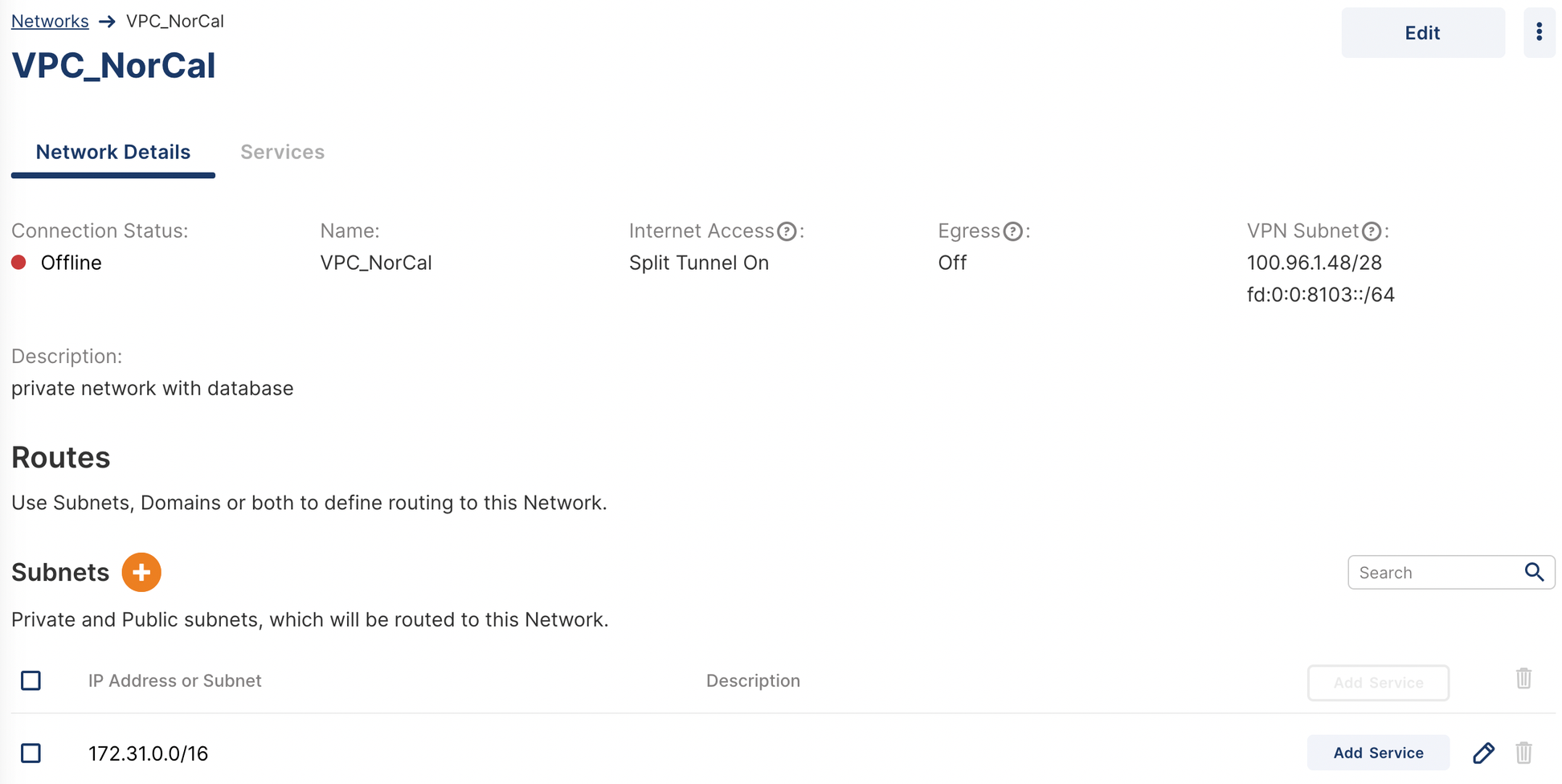
Configure Networks
Owen configures both networks using the Admin portal as shown below. See, Adding A Network.


Install Connector in North California Network
Owen installs Connector on one of the instances in the network and uses the respective Connector profile to get the instance connected to CloudConnexa. See, Installing Network Connector – Linux.

Add routes in North California Network
Before adding routes, Owen disables ‘Source/Destination’ Check on the Network interface of the instance running the Connector.
The Connector already has NAT and IP forwarding (routing) enabled.
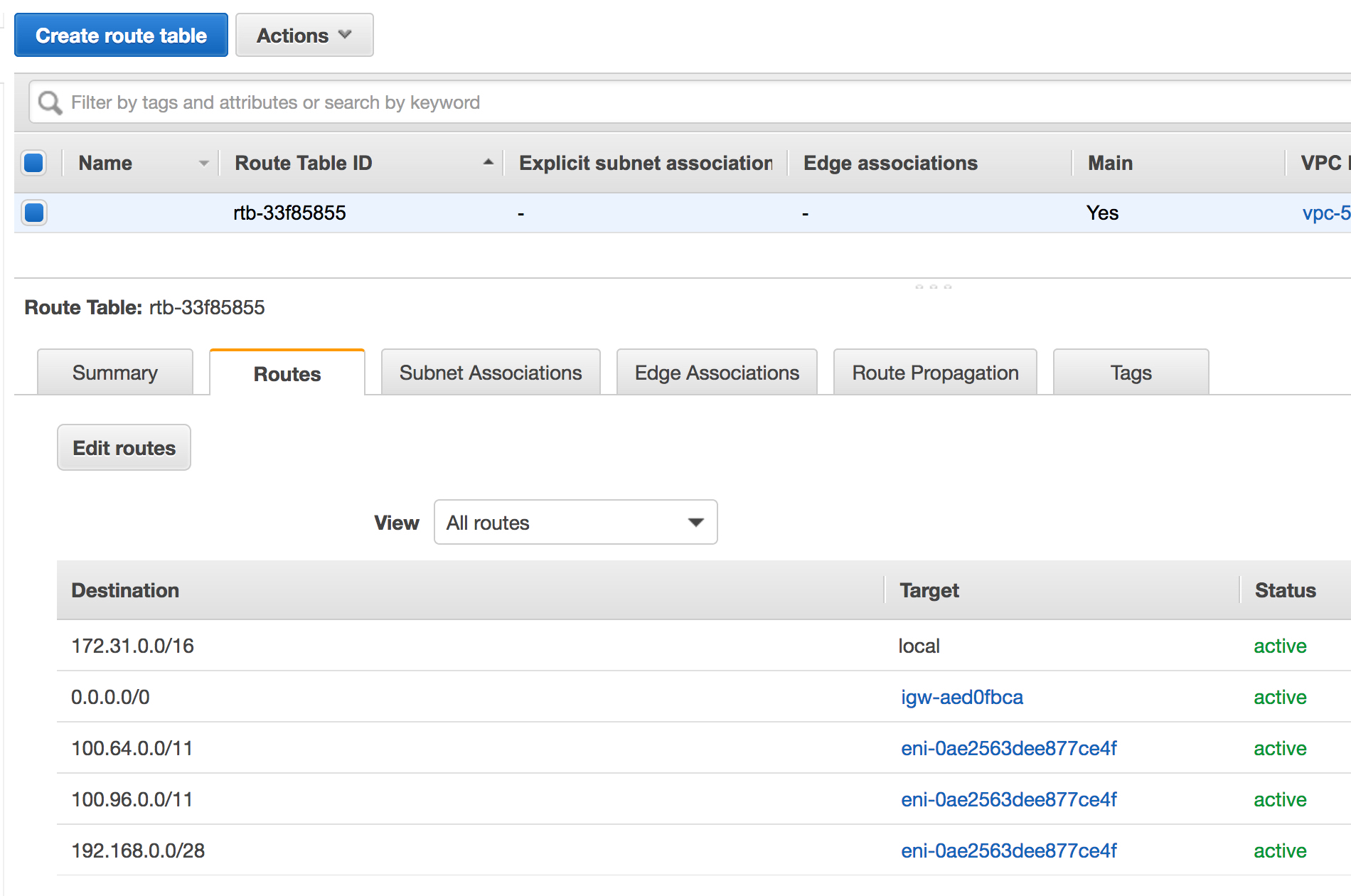
Next, he adds routes in the route table associated with the VPC, for the Oregon Network and the CloudConnexa WPC subnets using the instance running the Connector as the next-hop Target.
Install Connector in Oregon Network
Owen installs a Connector on one of the instances in the Network and uses the respective Connector Profile to get the instance connected to CloudConnexa. See, Installing Network Connector – Linux.
Add Routes in Oregon Network
Prior to adding routes, Owen disables Source/Destination Check on the Network interface of the instance running the Connector.
The Connector already has NAT and IP forwarding (routing) enabled.
Next, he adds routes in the route table associated with the VPC, for the Oregon Network and the CloudConnexa WPC subnets using the instance running the Connector as the next-hop Target.
Test Connectivity
Now, Owen can connect his laptop to CloudConnexa using the Connect Client (see importing Profile section, User Guide – Configuring a VPN for Secure Access to Internet), and reach any instance in both of the private Networks. As shown below, instances in private Networks can also reach each other.
