Tutorial: Configure a PfSense Router To Connect to CloudConnexa
Introduction
Many of our Users have expressed interest in using CloudConnexa compatible routers to connect to CloudConnexa instead of using the Connector application.
While connecting in this manner may not yield the best performance, due to the limited processing power and memory of the router, it could be useful in cases where convenience, rather than high throughput, is required.
Downloading the Connector Profile
Sign in to the CloudConnexa Administration portal at https://cloud.openvpn.com.
Navigate to Networks.
Select Networks.
Click the name of the router Network.
Click the Connectors tab.
Click the Deploy drop-down menu of the Connector you wish to modify.
Select Deploy Connector.
Click the Provider Type drop-down menu.
Select pfSense.
Click Download OVPN Profile.
Alternatively, you may download the profile by clicking the Network name, and the edit icon for the Network.
Or from the Connectors menu.
Open the downloaded Profile file in a text editor. In Windows, the file must be opened in a text editor other than Notepad (e.g. Wordpad / Notepad++).
Configuring pfSense
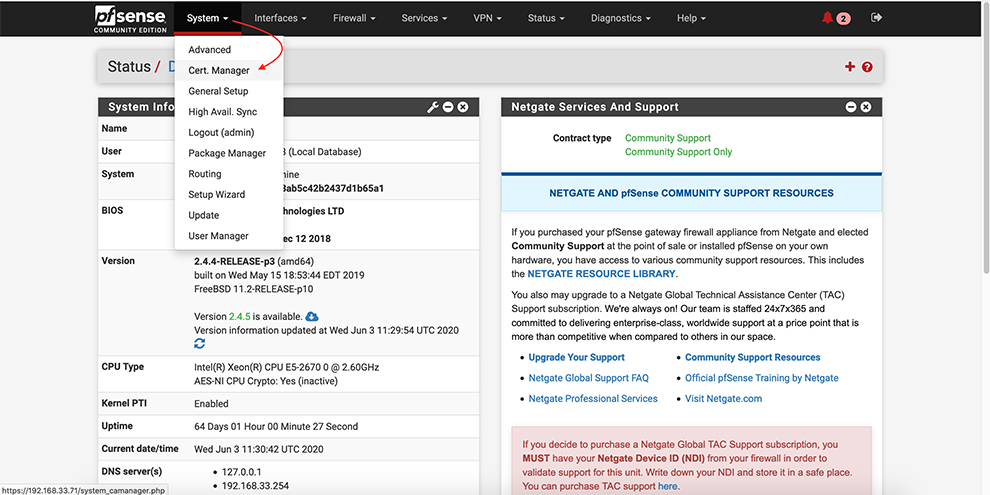
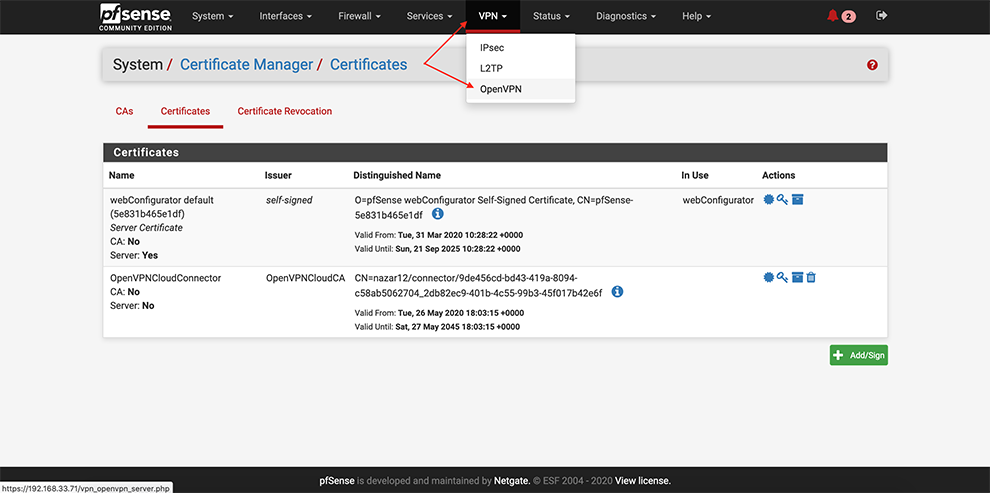
From the main menu go to System → Cert. Manager
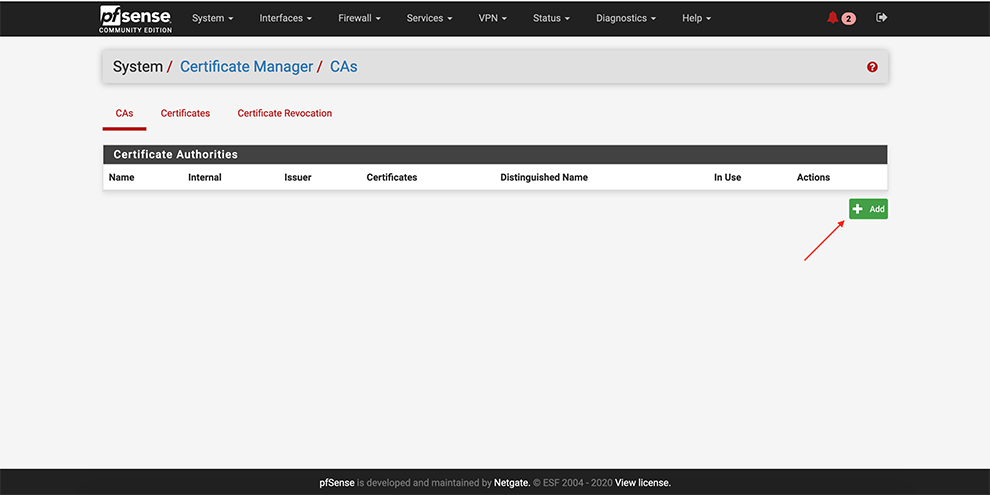
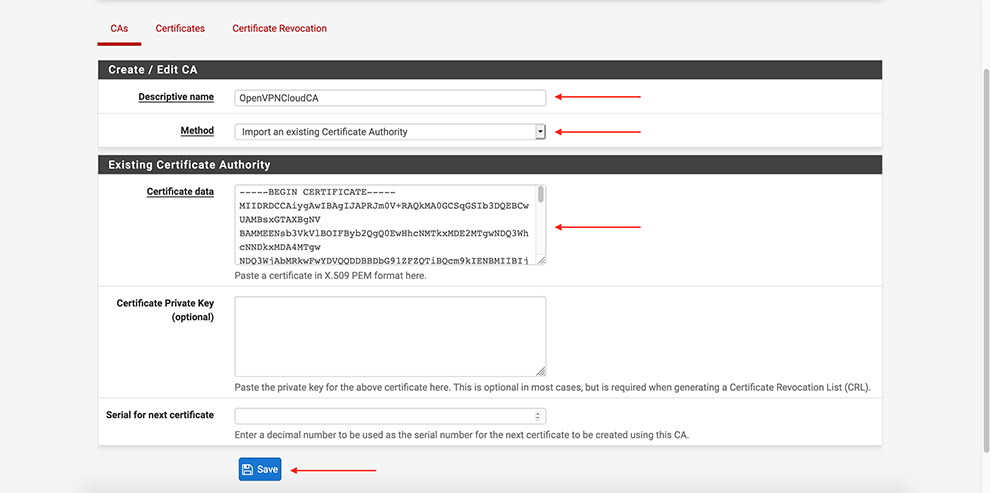
Next, go select CAs → Add
Select Method Import an existing Certificate Authority
Set some “Descriptive name”
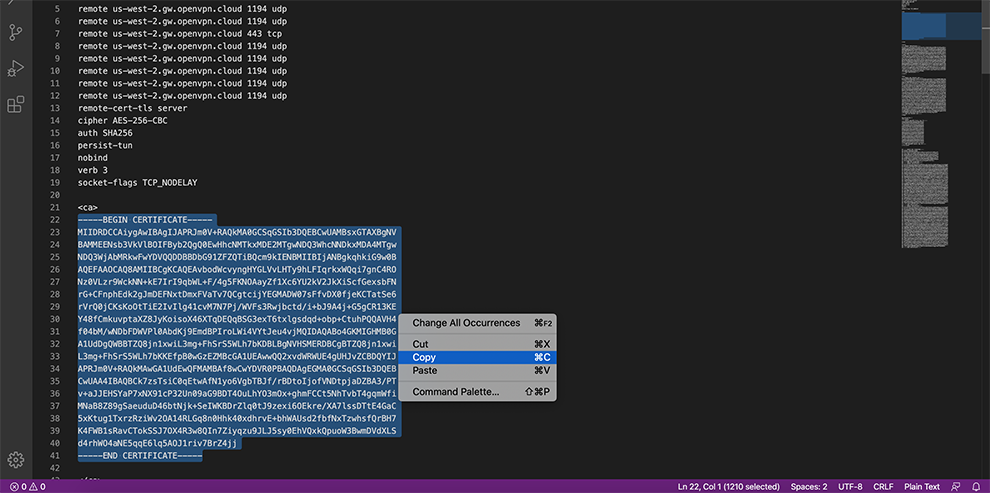
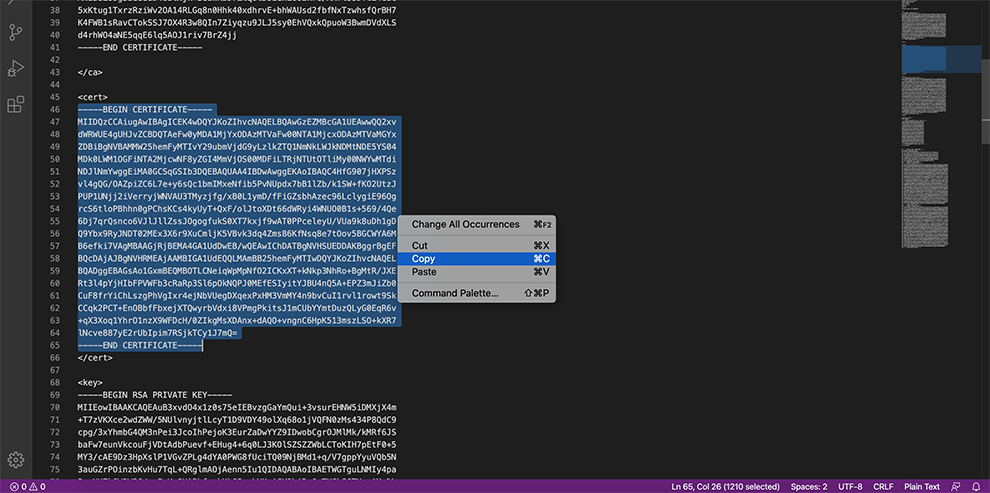
In the Certificate Data space, copy the data from the Connector’s Profile: everything between Certificate Authority <ca> and </ca>
Click Save
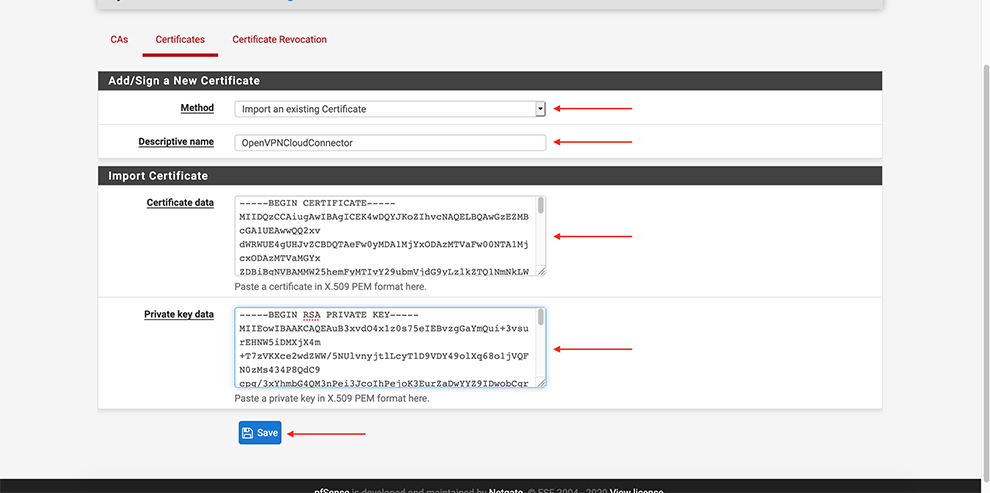
Certificates → Add
Select Method Import an existing Certificate
Set some “Descriptive name”
In the Certificate Data space, copy the data from the Connector’s Profile: everything between the Certificate data and between the Private key data <cert> and <cert>.
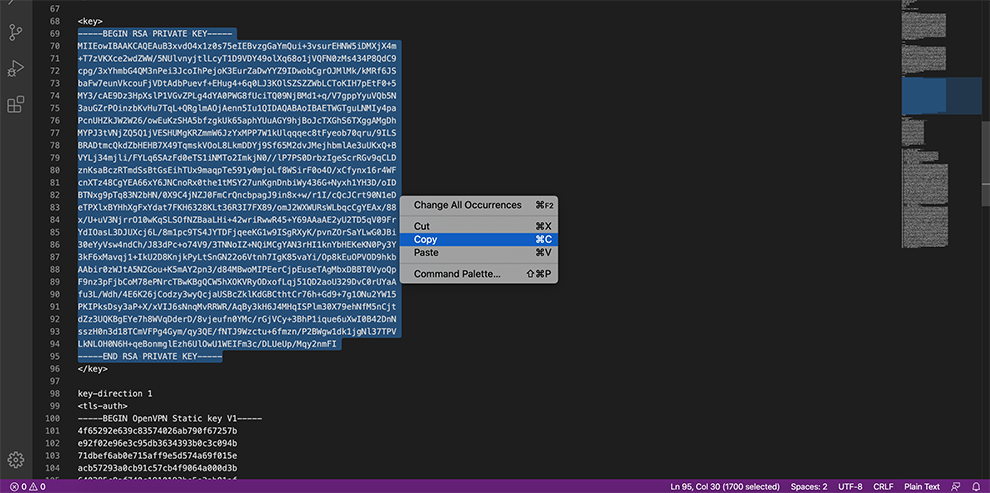
In the Private key data space, copy the data from the Connector’s Profile: everything between <key> and <key>.
In certificate type, choose: X.509 (PEM)
Click Save
From the main menu go to VPN → OpenVPN
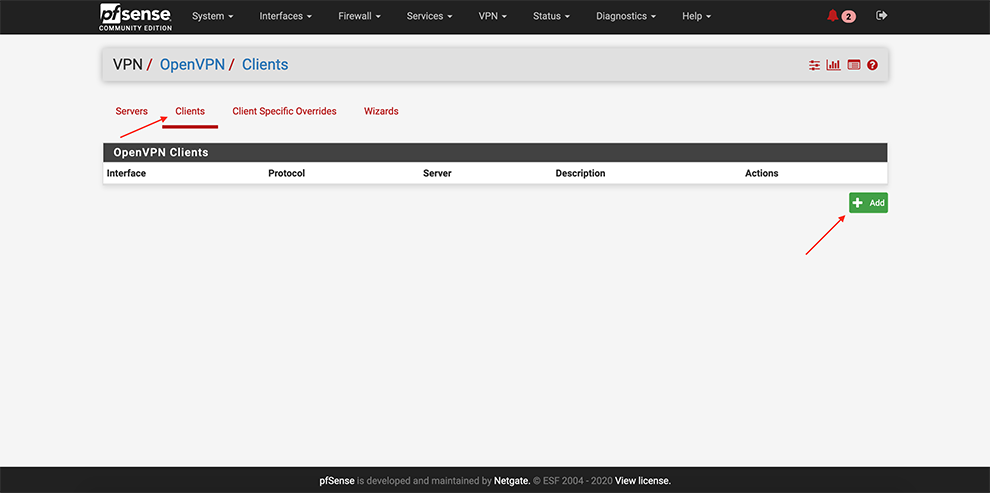
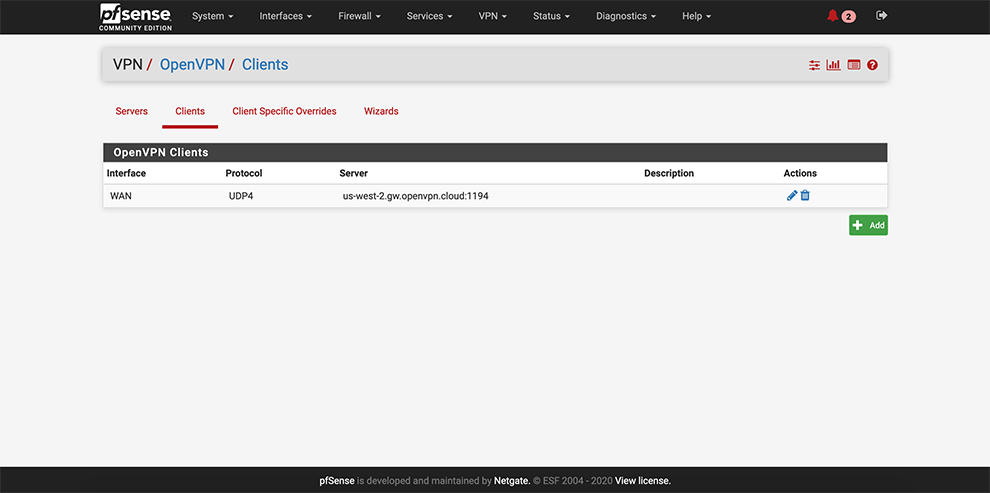
Select Clients → Add a client
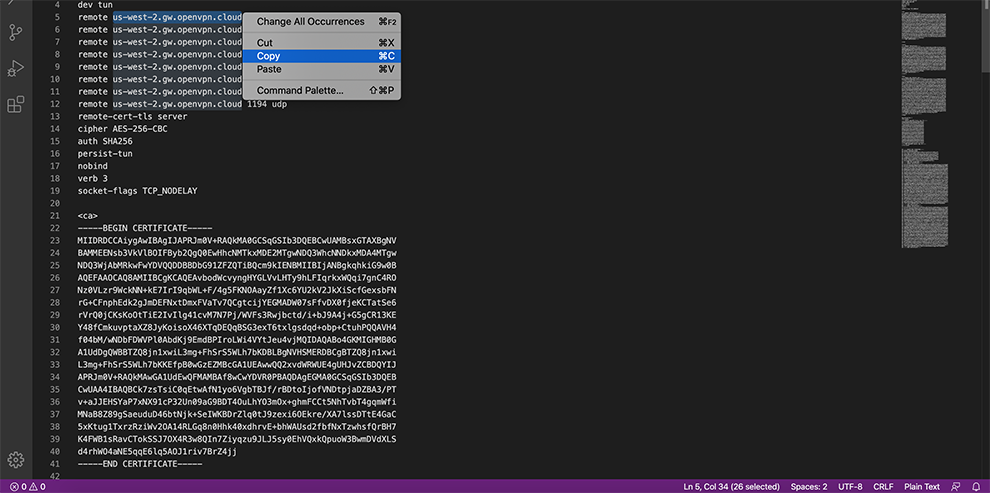
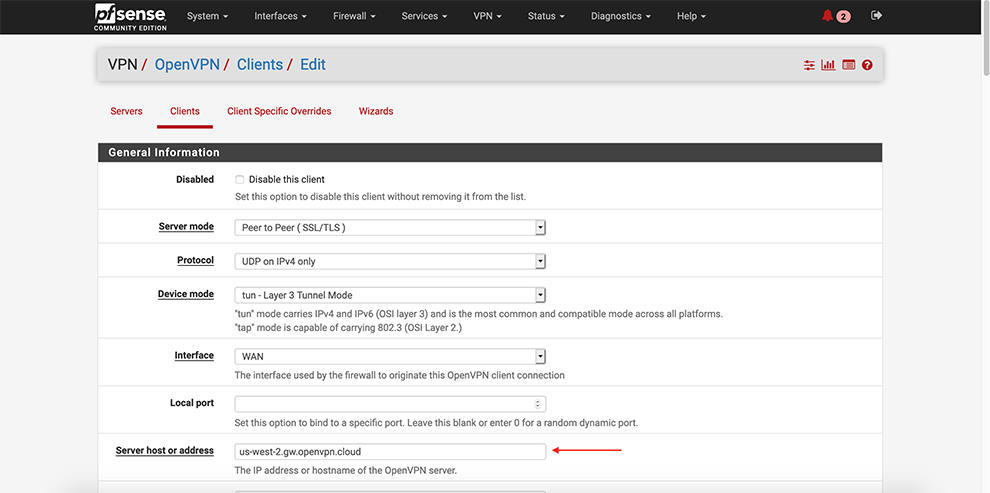
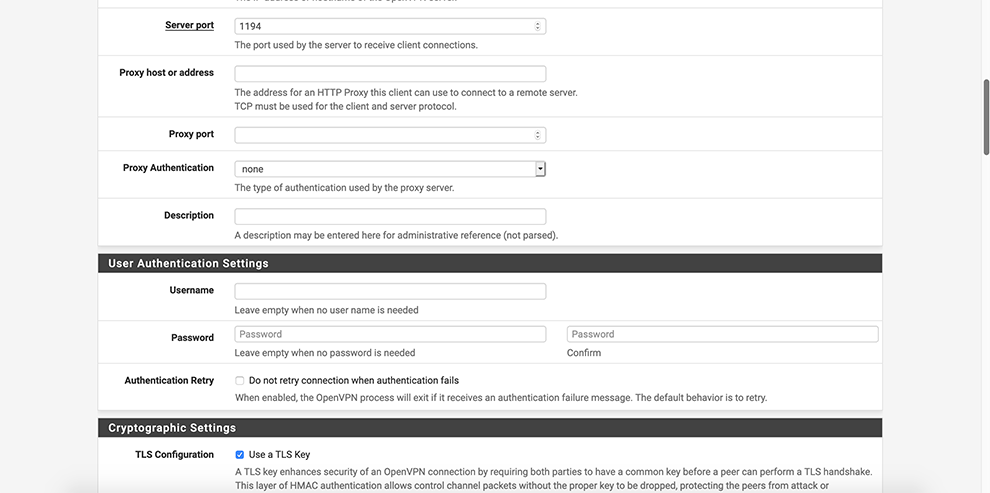
Enter preferable PGMT Hostname of the Cloud Connexa server in the Server Host or address field. Refer to Region Locations to find hostnames if needed.
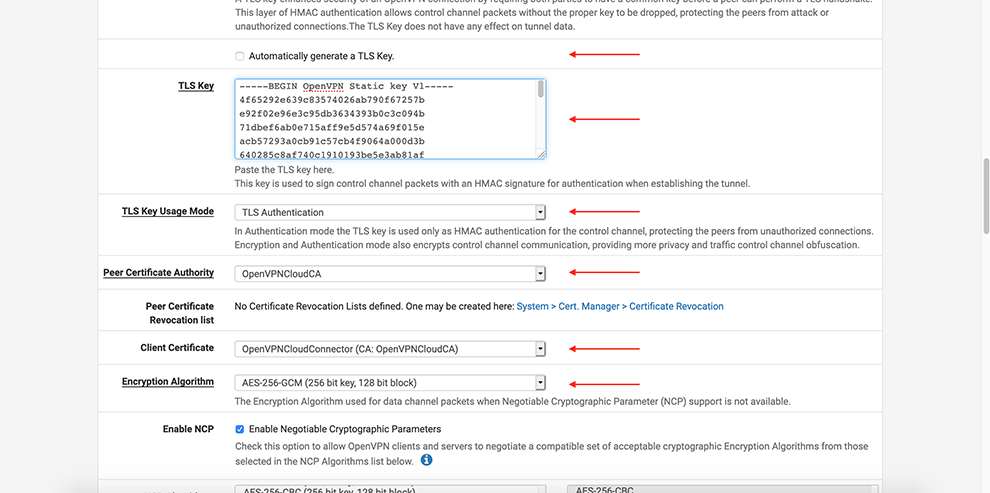
Uncheck Automatically generate a TLS Key
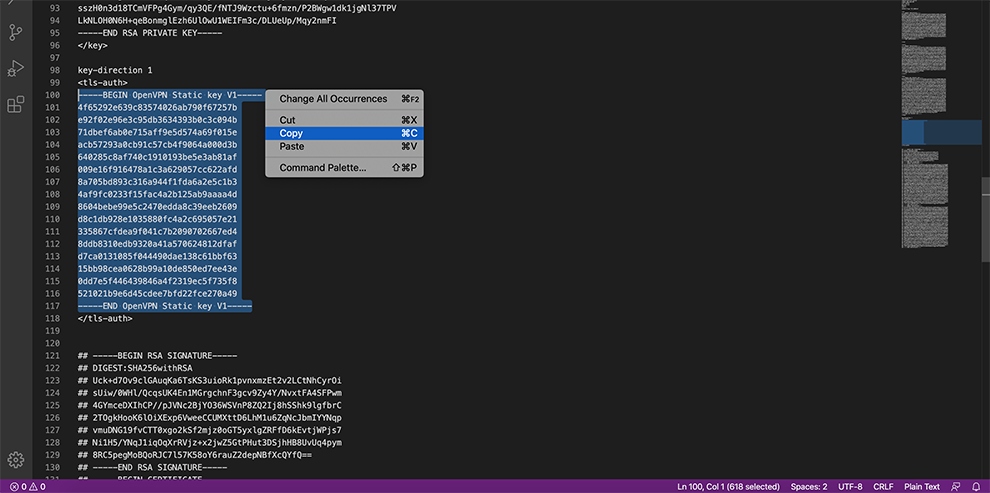
In the TLS Key space, copy the data from the Connector’s Profile: everything between the TLS Key <tls-auth> and <tls-auth>.
Select your Certificate Authority in the Peer Certificate Authority drop-down menu
Select your Certificate in the Client Certificate drop-down menu
Select AES-256-GCM in the Encryption Algorithm Data Encryption Algorithms drop-down menu
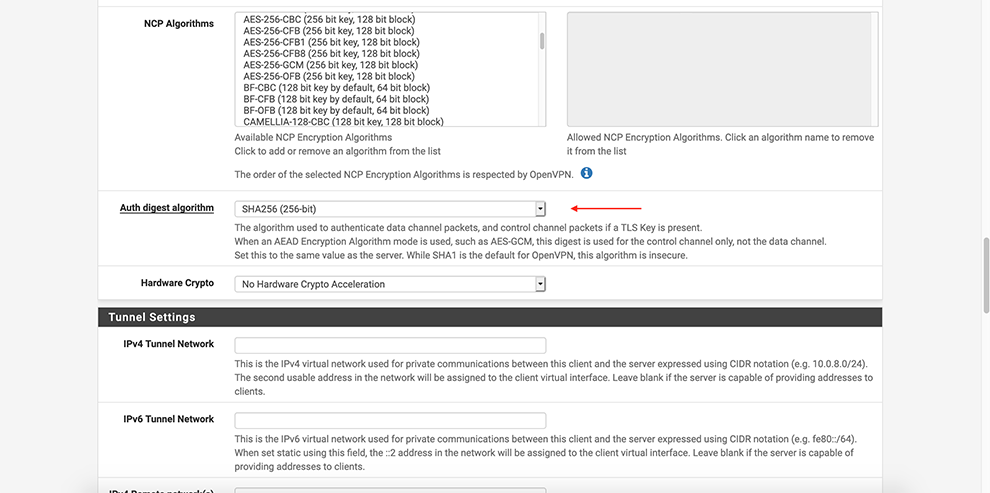
Select SHA256 in the Auth Digest Algorithm drop-down menu
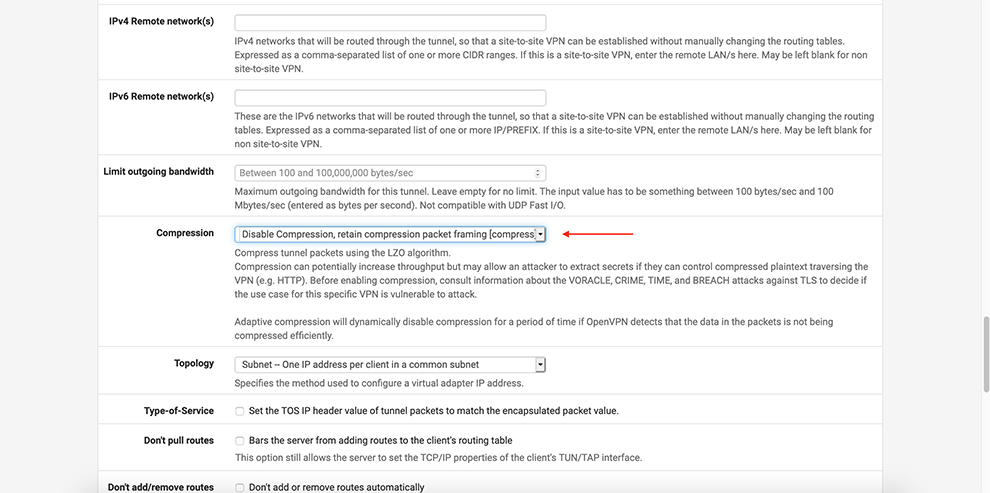
Select Disable Compression in the Compression drop-down menu
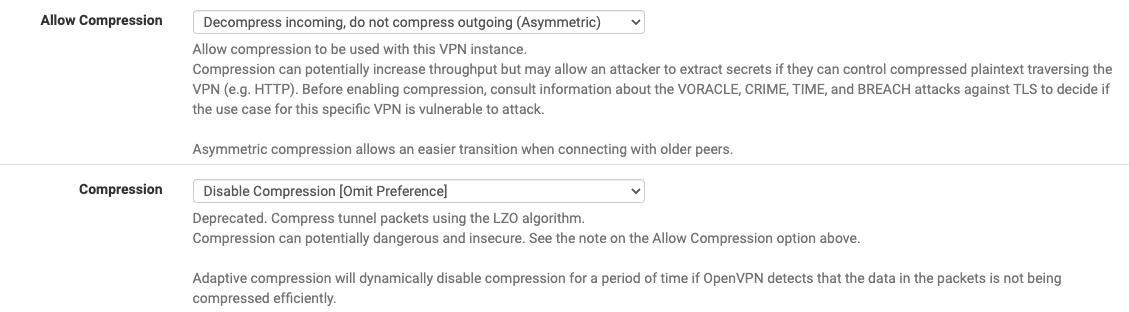
In Allow compression drop-down choose: Decompress Incoming, do not compress outgoing (asymmetric)
In Compression drop-down choose: Disable Compression [Omit Preference].
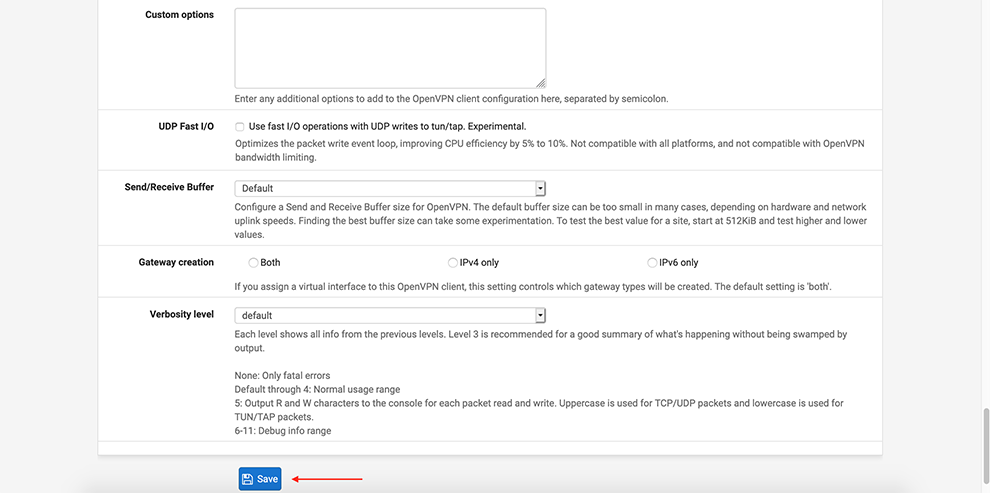
Click Save
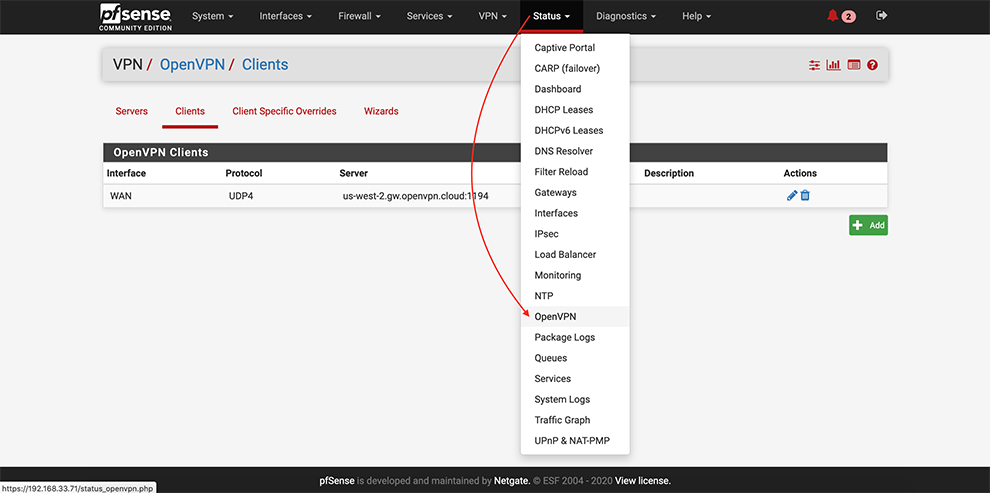
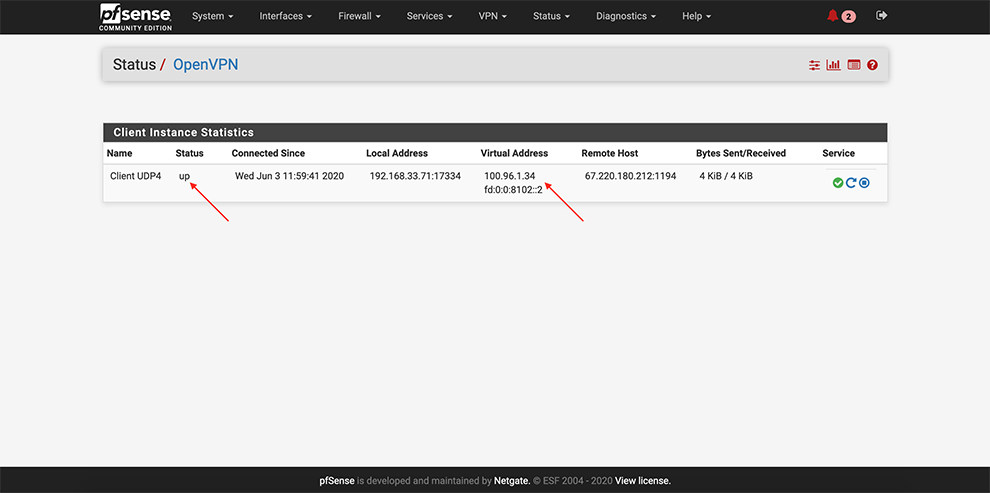
From the main menu go to Status → OpenVPN
Ensure that OpenVPN service is up and Virtual IP Addresses are assigned
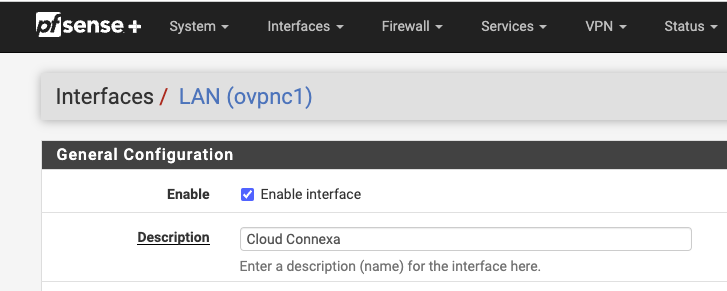
Enable the tunnel interface by carrying out the steps below:
Interfaces > assignment
Add > Choose the tunnel created for CloudConnexa. It will be shown as LAN. Click on the name > Enable it and change the name if desired.
Click Save.
Apply changes.
On Status > Interfaces check that the tunnel interface is added with status: Up.
Enable NAT by carrying out the steps below:
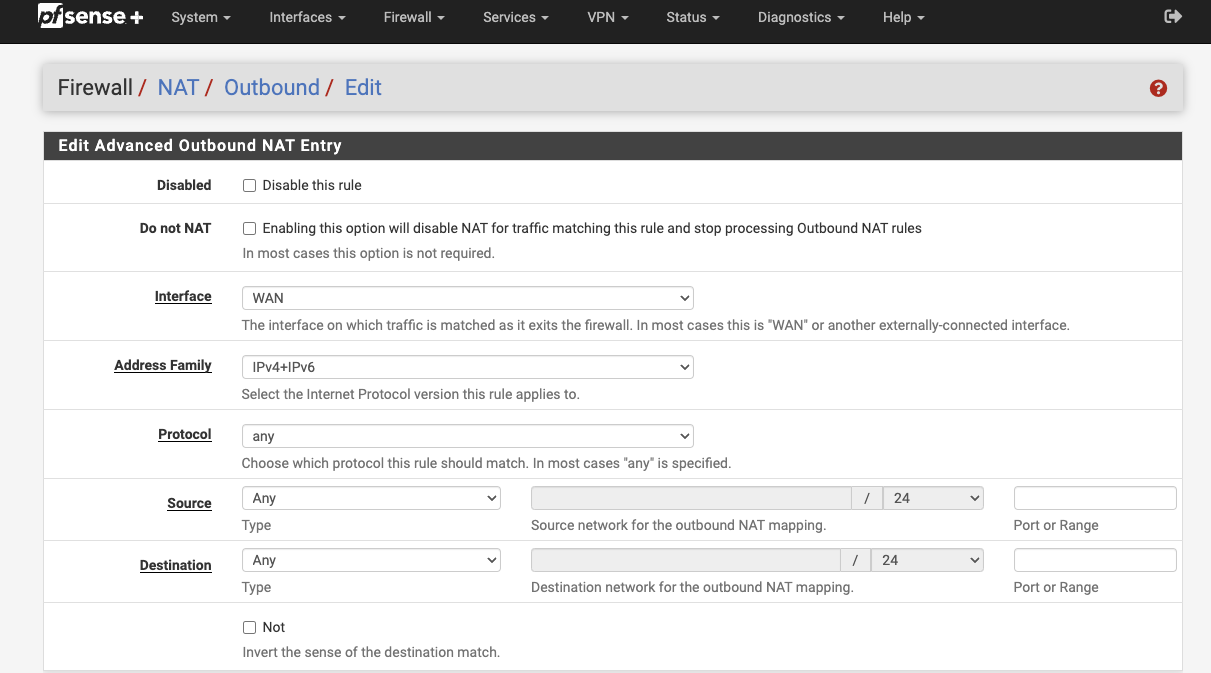
Firewall > NAT > Outbound
Outbound NAT Mode: Hybrid
Add > interface Pointing to local resources
Interface > WAN
Address Family > IPv4+IPv6
Protocol > Any
Source > Any
Destination > Any
Click Save
Apply Changes