
Tutorial: Configure pfSense as an OpenVPN Client to Connect to Access Server
Overview
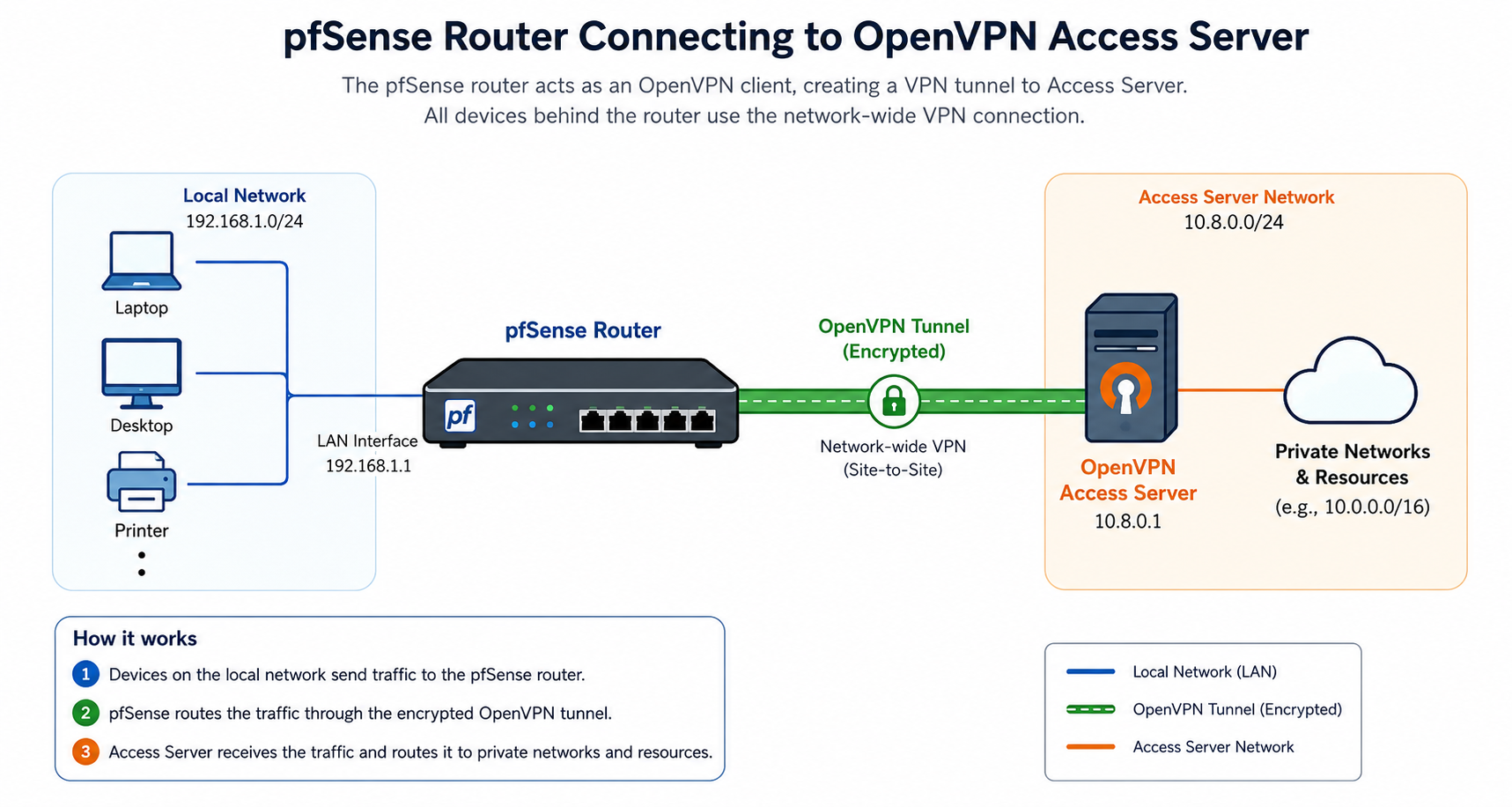
This tutorial shows you how to configure a pfSense router as a VPN client for OpenVPN Access Server. When you confiugre the connection for site-to-site access, the VPN tunnel allows devices behind the pfSense router to use a network-wide VPN connection without installing a VPN client on each device.
You can also use this configuration as part of a site-to-site deployment connecting a remote office or network to resources available through Access Server. For a broader explanation of this topology, refer to:
This tutorial uses an auto-login connection profile and the OpenVPN Client Import package for pfSense.
Prerequisites
An installed Access Server.
Admin Web UI access.
A pfSense router.
Administrative access to the pfSense web interface.
The latest supported firmware installed on the pfSense router.
This tutorial was tested with pfSense version 26.03.1-RELEASE, which uses OpenVPN 2.6.20. Menu names and options may differ in other versions.
Review the following documentation before configuring the connection:
Tutorial: Configure Network Settings with the Admin Web UI for configuring the Access Server hostname, VPN network, and routing settings.
Routing and NAT for understanding how Access Server routes traffic between VPN clients and private networks.
Next steps
To make the private subnet behind the pfSense router reachable by other VPN clients, refer to Tutorial: Configure Client-Side Subnet Routing in Access Server.
For additional deployment guidance for users at a remote office who need secure access to central resources, refer to the Secure Remote Access use case.