Tutorial: Add Duo Two-Factor Authentication to Access Server

Abstract

Follow these instructions to add Cisco's Duo two-factor authentication to your users’ Access Server logins.

Overview

Adding Duo 2FA to Access Server provides your business with enhanced security. You’ll provide remote, encrypted connections for users and strengthen authentication by introducing a second factor.

With Duo integration, users can authenticate using:

  • Push notifications (Duo Mobile app)

  • SMS passcodes

  • Phone call verification

Access Server also has built-in TOTP MFA support.

Important

If you are using Duo MFA, do not enable TOTP MFA, as it will cause user authentication problems.

When configured, the authentication flow works as follows.
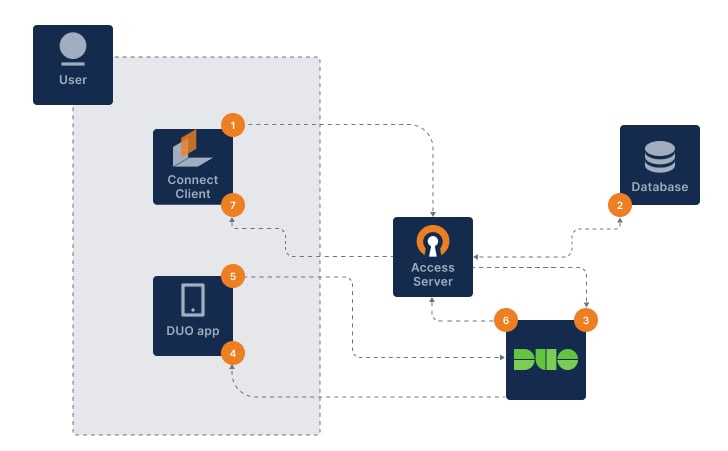
duo-post-auth.jpg
  1. The user signs in with OpenVPN Connect.

  2. Access Server authenticates username and password (primary auth).

  3. Access Server notifies Duo via HTTPS API to begin the 2FA procedure.

  4. Duo sends secondary auth via the user’s chosen method.

  5. The user sends a correct response.

  6. Duo sends an authentication response back to Access Server.

  7. OpenVPN connection established.

Prerequisites

  • A Duo account.

  • An installed Access Server.

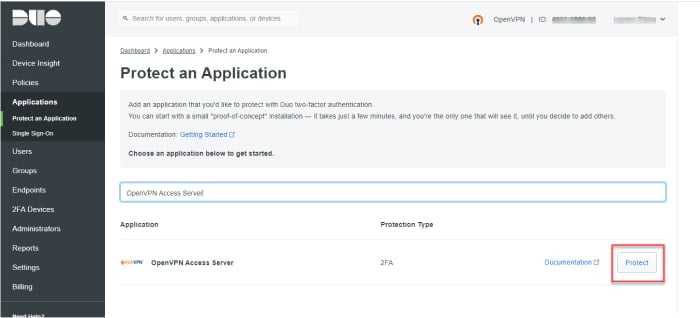
Sign in to the Duo Admin Panel and configure Access Server as a protected application.

  1. Sign in to the Duo Admin Panel.

  2. Click Applications.

  3. Click Protect an Application.

  4. Search for OpenVPN Access Server.

  5. Click Protect.

    Protect-an-Application.jpg
    • Access Server is added to your Duo-protected applications.

  6. Note the following values for later use:

    • Integration key

    • Secret key

    • API hostname

Download and configure the Duo post-authentication script, then apply it to Access Server.

Option 1: Download directly on the Access Server

  1. Connect to your Access Server console and get root privileges.

  2. Change to the scripts directory:

    cd /usr/local/openvpn_as/scripts/
  3. Download the Duo post-auth script:

    wget https://raw.githubusercontent.com/duosecurity/duo_openvpn_as/master/duo_openvpn_as.py
  4. Insert your Duo credentials:

    sed -i \
    -e "s|^IKEY = '.*'|IKEY = 'DUO_INTEGRATION_KEY_HERE'|" \
    -e "s|^SKEY = '.*'|SKEY = 'DUO_INTEGRATION_SECRET_KEY_HERE'|" \
    -e "s|^HOST = '.*'|HOST = 'DUO_API_HOSTNAME_HERE'|" \
    duo_openvpn_as.py

    Replace:

    • DUO_INTEGRATION_KEY_HERE → Your Duo key.

    • DUO_INTEGRATION_SECRET_KEY_HERE → Your Duo secret key.

    • DUO_API_HOSTNAME_HERE → Your Duo API hostname.

  5. Verify the values:

    grep -E "^(IKEY|SKEY|HOST)" duo_openvpn_as.py
  6. Load the script and restart the Access Server service:

    sacli --key "auth.module.post_auth_script" --value_file="/usr/local/openvpn_as/scripts/duo_openvpn_as.py" ConfigPut
    sacli start
  7. Test your setup by signing in as a VPN user.

    Tip

    Test with both an enrolled Duo user and a new user.

Duo also provides additional documentation on its website: OpenVPN Access Server DocumentationOpenVPN Access Server FAQ page, and OpenVPN Knowledge Base articles.

Option 2: Configure on an external machine

  1. Download the Duo OpenVPN Access Server package from GitHub.

  2. Extract the Duo OpenVPN Access Server package.

  3. Open the duo_openvpn_as.py script with a text editor.

  4. Find the section where you fill in your integration credentials and enter your integration key, secret key, and API hostname:

    # Fill in your integration credentials on the following three lines:
    IKEY = 'DUO_INTEGRATION_KEY_HERE'
    SKEY = 'DUO_INTEGRATION_SECRET_KEY_HERE'
    HOST = 'DUO_API_HOSTNAME_HERE'

    Replace:

    • DUO_INTEGRATION_KEY_HERE → Your Duo key.

    • DUO_INTEGRATION_SECRET_KEY_HERE → Your Duo secret key.

    • DUO_API_HOSTNAME_HERE → Your Duo API hostname.

  5. Connect to your Access Server console and get root privileges.

  6. Move or upload the duo_openvpn_as.py script to the Access Server scripts folder (/usr/local/openvpn_as/scripts/) on your server.

  7. Connect to your Access Server console and get root privileges.

  8. Load the script and restart the Access Server service:

    sacli --key "auth.module.post_auth_script" --value_file="/usr/local/openvpn_as/scripts/duo_openvpn_as.py" ConfigPut
    sacli start
  9. Test your setup by signing in as a VPN user.

    Tip

    Test with both an enrolled Duo user and a new user.

Duo also provides additional documentation on its website: OpenVPN Access Server DocumentationOpenVPN Access Server FAQ page, and OpenVPN Knowledge Base articles.

Verify that Duo MFA works in both the Admin/Client Web UIs and VPN connections.

Test with Admin or Client Web UI

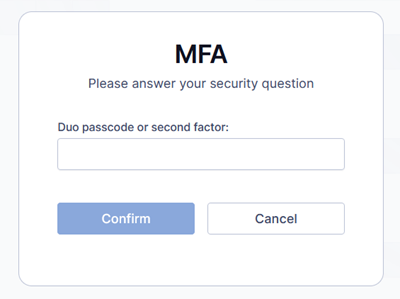
  1. Sign in with your credentials to the Admin Web UI or Client Web UI.

    • The Duo MFA prompt displays:

      DUO-MFA-prompt.png
  2. Enter a Duo factor:

    • Passcode

    • push → It will perform a Duo push authentication.

    • phone → It will perform a phone call.

    • sms → It will send a new batch of SMS passcodes. Your authentication attempt will be denied. You can then authenticate with one of the new passcodes.

  3. Complete authentication.

    Important

    Phone calls and SMS authentication consume Duo telephony credits. Refer to:

Test with VPN

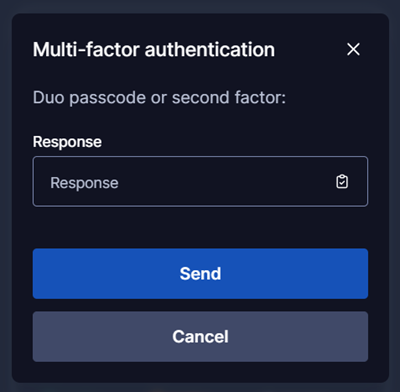
  1. Connect using OpenVPN Connect.

  2. Enter your credentials.

    • The Duo MFA prompt displays:

      DUO-MFA-app-prompt.png
  3. Enter a Duo factor:

    • Passcode

    • push → It will perform a Duo push authentication.

    • phone → It will perform a phone call.

    • sms → It will send a new batch of SMS passcodes. Your authentication attempt will be denied. You can then authenticate with one of the new passcodes.

  4. Complete authentication.

    Important

    Phone calls and SMS authentication consume Duo telephony credits. Refer to:

Optionally restrict authentication to Duo Push only.

  1. Connect to your Access Server console and get root privileges.

  2. Change to the scripts directory (where your Duo post-auth script is located):

    cd /usr/local/openvpn_as/scripts/
  3. Enable AutoPush:

    sed -i "s|^AUTOPUSH = False$|AUTOPUSH = True|" duo_openvpn_as.py
  4. Verify the change:

    grep -E "^(AUTOPUSH)" duo_openvpn_as.py
  5. Reload the configuration and restart the Access Server service:

    sacli --key "auth.module.post_auth_script" --value_file="/usr/local/openvpn_as/scripts/duo_openvpn_as.py" ConfigPut
    sacli start
    • After this change, only Duo Push authentication will be used.

If you no longer use Duo for your users and need to remove the integration, follow these steps:

  1. Connect to your Access Server console and get root privileges.

  2. Remove the Duo setup:

    sacli --key "auth.module.post_auth_script" ConfigDel
  3. Reload the service to commit the changes:

    sacli start