
Tutorial: Configure External PKI with Access Server's certool Script
Overview
The Access Server external public key infrastructure (PKI) feature integrates Access Server with third-party tools for X.509 PKI management instead of using the built-in certificate management capabilities.
When configured for external PKI usage, Access Server doesn't manage client certificates directly; instead, the customer's third-party PKI software generates and distributes client certificate/key pairs to client machines and a server certificate/key pair to the OpenVPN server.
This tutorial shows you how to set up external PKI using Access Server's certool
When you use a third-party tool outside of Access Server, refer to the software's documentation for specific instructions. Here we outline the steps and provide an example using Access Server's certool script. With certool, you can create your own new PKI structure, as described in these instructions.
At a high level, these are the steps for your configuration:
Modify as.conf to set Access Server in external PKI mode.
Create certificate/key pair with external PKI tool.
Create the TLS_auth key.
Generate Diffie Hellman parameters.
Import the necessary certificate and key files.
Provide certificate/key pairs to VPN client and server.
When configuring your Access Server in production, follow these high-level steps using your third-party PKI tool. We provide an example below using Access Server’s certool script, so the steps pertain to that tool.
An installed Access Server.
An external PKI tool.
Console access and the ability to get root access.
An OpenVPN client that supports the macOS Keychain and Windows certificate store.
Connect to the Access Server console and get root privileges.
Edit as.conf for external PKI usage:
nano /usr/local/openvpn_as/etc/as.confComment out certs_db:
# certificates database
# certs_db=sqlite:///~/db/certs.db
Save and exit the file — Ctrl-X, Y, then Enter.
Access Server no longer uses the certificate database. Instead, an external system must handle this.
Initialize the external PKI files in the epki directory, including the CA cert/key:
cd /usr/local/openvpn_as/scripts
mkdir -p epki/root
Create a root cert for signing intermediate CAs:
./certool --dir epki/root --cn "EPKI Root Test" --type caCreate the intermediate CA:
./certool --dir epki/root --type intermediate --serial 1 --cn "EPKI Intermediate" --name inter
cp epki/root/inter.crt epki/ca.crt
cp epki/root/inter.key epki/ca.key
cat epki/root/ca.crt epki/ca.crt >epki/cabundle.crt
Create a certificate/key pair for the OpenVPN server:
./certool --dir epki --type server --serial 1 --cn serverCreate a tls_auth key for the OpenVPN server:
./certool --dir epki --tls_authGenerate Diffie Hellman parameters for the OpenVPN server:
openssl dhparam -out epki/dh.pem 2048Load the newly generated files into the Access Server config database:
sacli --key "external_pki.ta_key" --value_file epki/ta.key ConfigPut
sacli --key "external_pki.ca_crt" --value_file epki/cabundle.crt ConfigPut
sacli --key "external_pki.server_crt" --value_file epki/server.crt ConfigPut
sacli --key "external_pki.server_key" --value_file epki/server.key ConfigPut
sacli --key "external_pki.dh_pem" --value_file epki/dh.pem ConfigPut
For Access Server 2.7 and newer, you must also generate your auth token and add the generated file:
./certool --dir epki --auth_token
./sacli --key "external_pki.auth_token_key" --value_file epki/auth_token.key ConfigPut
Configure X509 explicit/extended key usage based on RFC3280 TLS Rules:
sacli --key "external_pki.remote_cert_usage" --value eku ConfigPutConfigure the use of the X509 “role” attribute for the declaration of auto-login permission:
sacli --key "external_pki.autologin_x509_spec" --value "role,,AUTOLOGIN" ConfigPutGenerate the tls-crypt-v2 key (for Access Server 2.9.0 and higher only):
./certool --dir epki --tls_crypt2_server
./sacli --key "external_pki.tls_cryptv2_server" --value_file epki/tls_crypt2.key ConfigPut
Restart Access Server:
systemctl restart openvpnas
To test our example, we generate a test client, etest.
Sign in to the Admin Web UI.
Select Users.
Select Add New User.
The New User modal displays.
Enter the new username, "etest," and assign to a group, then select Save.
The single user page for "etest" is displayed.
Select Restart.
From the console, generate a cert/key pair for etest:
./certool --dir epki --type client --serial 2 --cn etest --cabundle epki/cabundle.crt --pkcs12The key is encrypted with a password you enter at the prompt, and certool generates the file epki/etest.p12, which contains the cert/key pair.
To test auto-login, generate an auto-login cert/key pair for etest:
./certool --dir epki --type client --serial 3 --cn etest --name etestauto --cabundle epki/cabundle.crt --pkcs12 role=AUTOLOGIN
./sacli --user etest --key prop_autologin --value true UserPropPut
Finally, generate a server-locked profile. The profile will be stored in client.ovpn:
./sacli GetGeneric >client.ovpnCopy these three files to the client machine:
epki/etest.p12:
The userlogin cert/key pair for user etest.
epki/etestauto.p12:
The autologin cert/key pair for user etest.
client.ovpn:
The server-locked profile for the Access Server.
Install the certificate/key pair:
Launch OpenVPN Connect v3.
Import the connection profile, client.ovpn.
Select the Menu icon.
Select Certificate & Tokens.
Under PKCS#12, select the Add icon.
Select your Client P12 File (etest.p12).
Enter the password previously configured, then select OK.
Select My Profiles and edit the profile.
Under Certificates, use the Select button to add the external certificate to the profile.
Select the p12 file.
Select Save Changes.
Select Connect to start the profile connection.
With the release of Access Server 2.14.2, we've made configuring client connection profiles for ePKI easier. Previously, creating these profiles required using the command line, as noted in the tutorial. However, in version 2.14.2 and later, you can now create and manage ePKI client connection profiles directly from Access Server's Client Web UI.
There are two types of ePKI profiles available:
Generic ePKI profile:
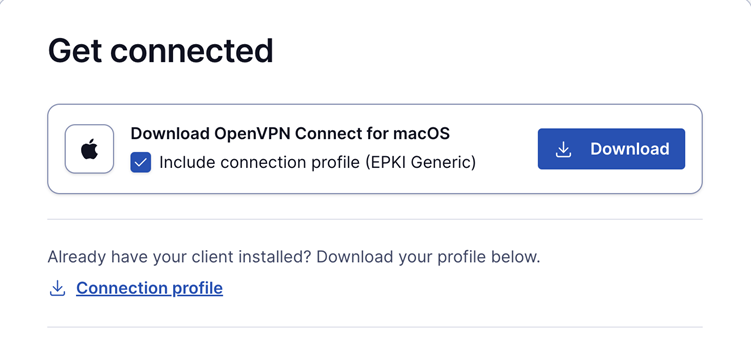
This profile requires the user to authenticate with a password when connecting.
Ideal for environments where a password-based security layer is needed in addition to certificate-based authentication.
Auto-login ePKI profile;
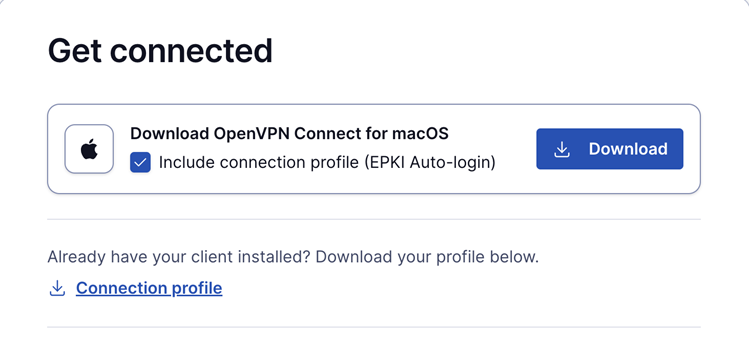
This profile automatically uses the certificate for authentication without requiring a password.
Suitable for unattended devices or systems where automatic, certificate-based login is needed.
In addition, the Import Profile from URL functionality in OpenVPN Connect allows users to import these connection profiles directly, making the configuration process faster and more seamless.
This update simplifies the ePKI setup, providing more flexibility and reducing the reliance on the command line.
Currently, Access Server uses the following client certificate naming conventions:
The Common Name of the certificate must match the username of the connecting client.
Autologin certificates, which don't require username/password authentication (only client certificate authentication), must be tagged to indicate that they hold this right.
Split CA, i.e. using a separate CA chain for client and server certificates
By default, one CA chain is assumed for both client and server certificates. To use a separate chain for each:
Enable split CA mode:
./sacli --key "external_pki.remote_cert_usage" --value split ConfigPutReplace the following line (from above):
./sacli --key "external_pki.ca_crt" --value_file <CA_CERT_BUNDLE&> ConfigPutwith:
./sacli --key "external_pki.server_ca_crt" --value_file <SERVER_CA_CERT_BUNDLE> ConfigPut
./sacli --key "external_pki.client_ca_crt" --value_file <CLIENT_CA_CERT_BUNDLE> ConfigPut
Then restart the service:
./sacli start
You don’t need to mark certificates as client or server when using split CA mode. Therefore, settings for Netscape certificate type or X509 explicit/extended key usage based on RFC3280 TLS rules can be omitted.
Controlling CN/username requirement
By default, client logins must use a username that matches the Common Name on the client certificate. This requirement may be dropped by disabling the external_pki.cn_username_requirement boolean key:
./sacli -k external_pki.cn_username_requirement -v false ConfigPutError Message
"'Parameter \"external_pki.auth_token_key\" is missing from the configuration database. For more information, please visit the following URL: https://openvpn.net/static-links/documentation-external-pki': util/cdict:286,util/cdict:258,util/cdict:522,util/cdict:555 (exceptions.KeyError)"Issue: This error occurs when upgrading an Access Server configured for external public key infrastructure (ePKI) from a version lower than 2.7 to version 2.7 and higher. This is expected behavior because this configuration key was missing for versions before 2.7 and must be added after you upgrade. You’ll also see “service failed to start or returned error status” in your log messages.
Resolution: This error can be resolved by running these commands with root privileges:
cd /usr/local/openvpn_as/scripts
mkdir epki
./certool --dir epki --auth_token
./sacli --key "external_pki.auth_token_key" --value_file epki/auth_token.key ConfigPut
Then restart the service:
systemctl start openvpnasA Certificate Revocation List (CRL) is a digitally-signed list maintained by a Certificate Authority (CA). It contains the serial numbers of certificates revoked before their scheduled expiration date. CRLs are a critical security mechanism in any PKI deployment, allowing administrators to immediately invalidate compromised or untrusted certificates.
In Access Server, CRLs ensure that VPN clients using revoked certificates can't authenticate. Even certificates that are otherwise valid can be immediately blocked when security circumstances change.
Configuration and usage
A CRL allows administrators to deny access to specific client certificate serial numbers.
If a client attempts to connect using a certificate listed in the CRL, access is denied.
Any client already connected whose certificate appears in the CRL at the time it's loaded is immediately disconnected.
The CRL field is specified via the
vpn.server.crlkey and initially loaded using:sacli startOnce loaded, the CRL file may be updated at any time. The Access Server automatically reloads it within a few seconds.
Reload timing is controlled by the
vpn.server.crl_resamplekey (integer, in seconds, default = 10).The CRL file must be in PEM format.
Add a CRL to Access Server
Follow these steps to create and deploy a CRL in ePKI mode:
Create the CRL using
certool:cd /usr/local/openvpn_as/scripts/ ./certool --dir=epki --days=3650 --revoke=3 --out=crl.pem --reason=key_compromiseReplace
3with the serial number(s) of the certificate(s) you wish to revoke.
Add the CRL to the Access Server configuration:
sacli --key vpn.server.crl --value "/usr/local/openvpn_as/scripts/epki/crl.pem" ConfigPutApply the changes:
sacli startThe CRL is now active. Any client certificates listed in
crl.pemare denied access, and connected clients are disconnected if their certificates appear in the CRL.