Tutorial: Enable DCO for a Windows Connector
OpenVPN Data Channel Offload (DCO) improves the OpenVPN tunnel's performance by moving data packet processing from the OpenVPN userspace program to the kernel. On Windows, you can turn on DCO either from within the OpenVPN Connect app or by running commands with the ovpnconnector.exe service binary.
Option 1: Enable DCO in the OpenVPN Connect app
Launch OpenVPN Connect.
Click Menu > Settings
Expand Advanced Settings.
Set Security Level to Preferred.
Click the Enable DCO checkbox.
Screenshot of OpenVPN Connect 3.5.0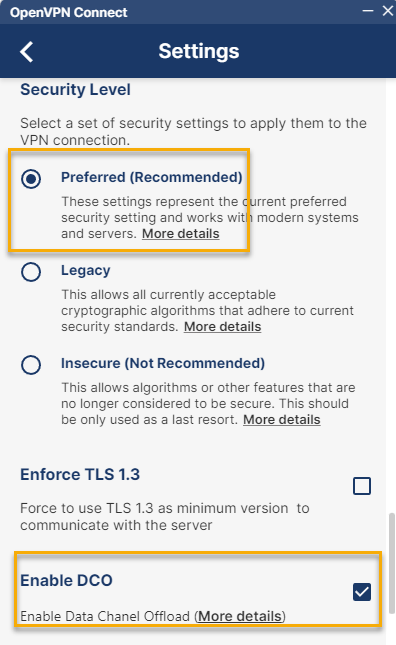
Return to the profiles screen and click or tap your profile to connect.
Option 2: Enable DCO using ovpnconnector.exe (command line)
You can also turn on DCO when connecting to CloudConnexa using OpenVPN Connect's ovpnconnector.exe from the command line.
Import and configure the OVPn profile with the following commands:
cd %ProgramFiles%\OpenVPN Connect
ovpnconnector.exe install
ovpnconnector.exe set-config Profile ovpnconnector.ovpn
ovpnconnector.exe set-config log ovpnconnector.log
ovpnconnector.exe start
For a helpful CloudConnexa tutorial, refer to Tutorial: Use OpenVPN Service Binary on Windows to Automatically Connect to CloudConnexa on Startup for more information on using
ovpnconnector.exe.Apply DCO to the active profile:
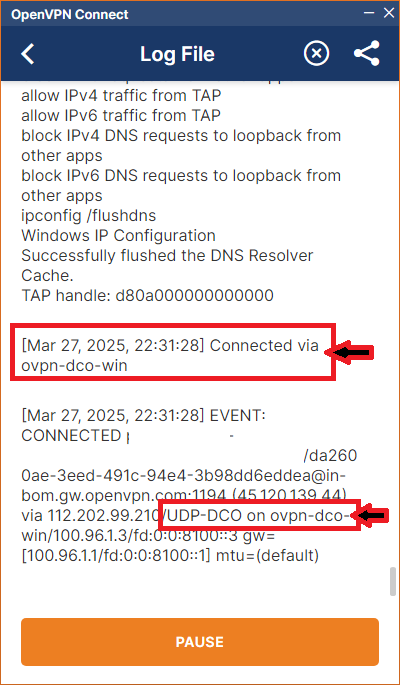
cd %ProgramFiles%\OpenVPN Connect ovpnconnector.exe stop ovpnconnector.exe set-config dco true ovpnconnector.exe startVerify that DCO is active in the OpenVPN Connect log file or the
ovpnconnector.logfile: