OpenVPN Connect macOS Network Extension
OpenVPN Connect 3.9.0 for macOS introduces Network Extension, Apple's native VPN framework — covers activation steps, MDM deployment via Jamf Pro and Microsoft Intune, terminal management with scutil --nc, and known limitations including hardware token reassignment.
Overview
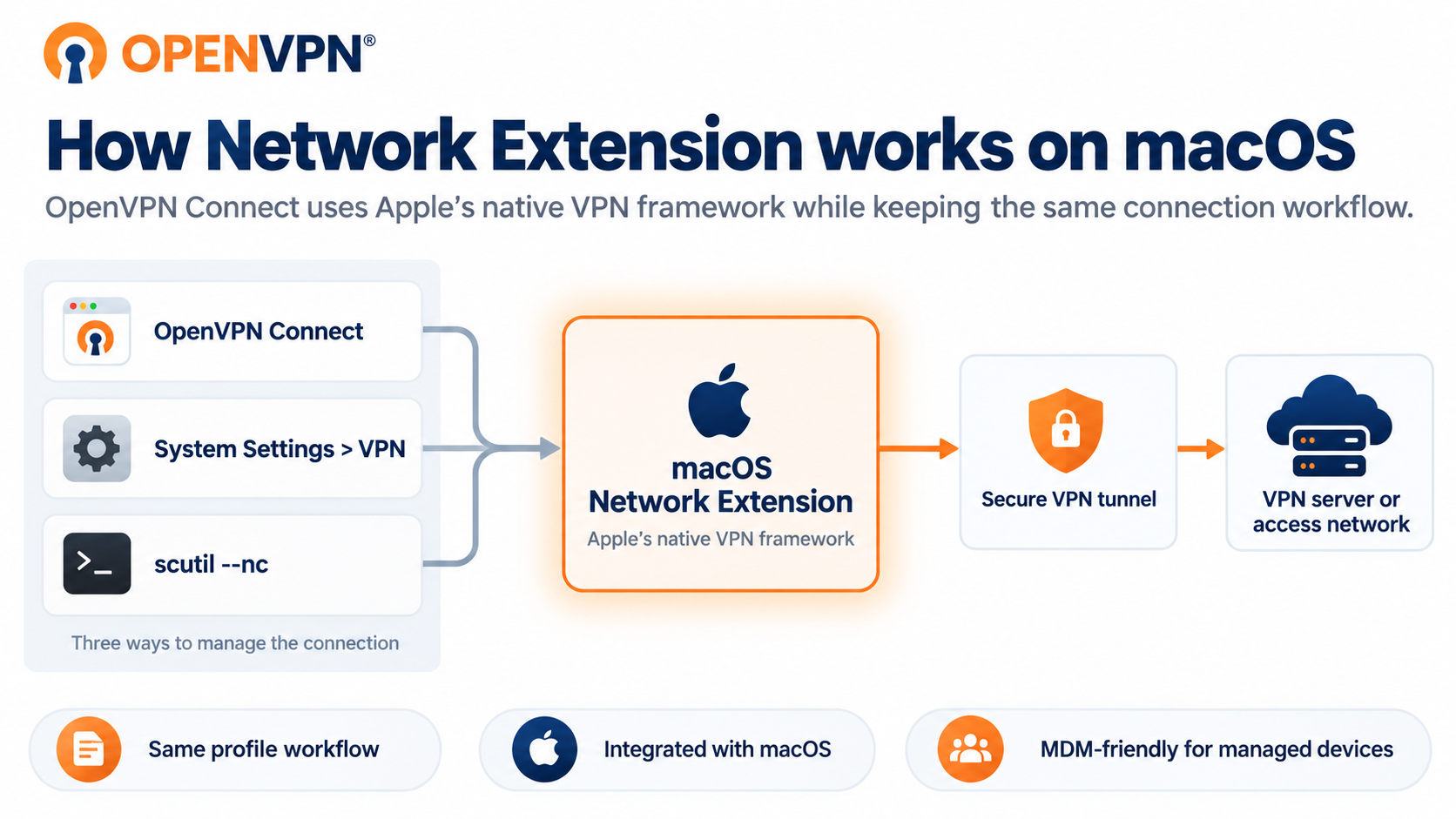
Starting with OpenVPN Connect 3.9.0 for macOS, VPN connections use Network Extension, Apple’s native VPN framework. Network Extension replaces the previous background process that required elevated system permissions to manage the VPN tunnel.
The way you use OpenVPN Connect doesn’t otherwise change. You can continue to import and manage connection profiles, authenticate, and connect from the OpenVPN Connect app.
Network Extension also integrates VPN connections with macOS. After activation, your OpenVPN Connect connection profiles appear in System Settings → VPN, where you can connect without opening OpenVPN Connect. You can also manage VPN connections from Terminal with scutil --nc.
For the complete list of changes in OpenVPN Connect 3.9.0, refer to macOS Release Notes. For more information about the framework itself, refer to Apple’s Network Extension documentation.
How Network Extension changes OpenVPN Connect
With Network Extension:
OpenVPN Connect uses the macOS Network Extension framework to manage VPN tunnels.
Your existing OpenVPN Connect workflow for connection profiles, authentication, and VPN connections remains the same.
OpenVPN Connect connection profiles appear in System Settings → VPN.
You can connect or disconnect from System Settings without opening OpenVPN Connect.
You can monitor and interact with VPN connections from Terminal using
scutil --nc.
After you approve Network Extension the first time, OpenVPN Connect automatically applies extension updates with future app releases. You don't need to repeat the approval process.
Before you begin
Ensure you’ve installed or updated to OpenVPN Connect 3.9.0 or newer. Refer to How to Install OpenVPN Connect on macOS for installation and update instructions.
Activating Network Extension interactively requires administrative privileges on the Mac.
If you deploy OpenVPN Connect to non-admin users, preapprove the OpenVPN Connect system extension with a mobile device management (MDM) solution before users launch the updated app. This lets macOS activate the extension without requiring an administrator to approve it on each device.
Activate Network Extension
After installing or updating OpenVPN Connect, activate Network Extension the first time you open the app:
Launch OpenVPN Connect.
OpenVPN Connect prompts you for permission to activate Network Extension.
Select Open System Settings.
In System Settings, allow the OpenVPN Connect system extension when macOS prompts you.
When macOS prompts you to add the VPN configuration, approve the request.
After activation, OpenVPN Connect uses Network Extension for VPN connections.
Verify Network Extension
To verify that the VPN configuration is available to macOS:
Navigate to System Settings → VPN.
Confirm that your OpenVPN Connect connection profiles appear.
Connect to a profile from System Settings, or open OpenVPN Connect and connect as usual.
You can also use scutil --nc in Terminal to monitor and interact with VPN connections. Run the following command to view the available scutil --nc commands:
scutil --nc help
Preapprove Network Extension for non-admin users
If your users don’t have administrative privileges, use MDM to preapprove the OpenVPN Connect system extension.
The system extension uses these identifiers:
Identifier | Value |
|---|---|
Team ID |
|
System extension bundle identifier |
|
System extension type | NetworkExtension |
Preapproving the extension avoids requiring an administrator to approve Network Extension interactively on each managed Mac.
If you also manage OpenVPN Connect settings and connection profiles through MDM, refer to Global Configuration File Support for macOS.
Preapprove the system extension with Jamf Pro
To configure the OpenVPN Connect system extension in Jamf Pro:
In Jamf Pro, navigate to Computers → Configuration Profiles, then select + New.
Configure General:
Name: Enter
OpenVPN Connect – System ExtensionLevel: Select Computer Level.
Distribution Method: Select Install Automatically.
Select System Extensions → Configure.
Add these system extension entries:
Display Name
System Extension Types
Team ID
Value
OpenVPN Connect Extension
Allowed System Extensions
ACV7L3WCD8org.openvpn.client.app.nipOpenVPN Connect Type
Allowed System Extension Types
ACV7L3WCD8Network Extension
Leave Allow users to approve system extensions cleared if you don't want users to approve additional system extensions that aren't included in your configuration profiles.
Open Scope and add the computers or computer groups that should receive the profile.
Select Save.
Jamf Pro deploys the system extension configuration to the targeted Macs.
Preapprove the system extension with Microsoft Intune
Use the Microsoft Intune Settings catalog to configure the OpenVPN Connect system extension:
In the Microsoft Intune admin center, navigate to Devices → Configuration.
Select Create → New Policy.
Configure the policy:
Platform: Select macOS.
Profile type: Select Settings catalog.
Select Create.
On Basics, enter a descriptive name such as
OpenVPN Connect – System Extension, then select Next.On Configuration settings, select Add settings.
Search for
allowed system, then select System Configuration → System Extensions.Add these settings:
Allowed System Extensions
Allowed System Extension Types
Configure Allowed System Extensions:
Setting
Value
Team Identifier
ACV7L3WCD8Allowed System Extensions
org.openvpn.client.app.nipConfigure Allowed System Extension Types:
Setting
Value
Team Identifier
ACV7L3WCD8Allowed System Extension Types
NetworkExtensionIf your organization wants to prevent users from approving additional system extensions that aren’t included in your MDM configuration, add Allow User Overrides and set it to
False.Continue to Assignments and add the device group that should receive the policy.
Review the configuration, then select Create.
Intune deploys the system extension policy the next time the targeted devices check in.
Known limitations
Hardware tokens and YubiKey
If a connection profile uses a certificate and key pair stored on a hardware token such as a YubiKey, the certificate and key pair are detached from the connection profile when you move to Network Extension.
Open OpenVPN Connect and reassign the certificate/key pair from the hardware token to the affected connection profile.
Terminal deployment
You can’t activate or approve Network Extension with Bash or other Terminal commands.
For managed deployments, use an MDM system extension payload to preapprove the OpenVPN Connect system extension.