Tutorial: Configure Full and Split Tunneling in Access Server
Configure full and split tunneling in OpenVPN Access Server using the Admin Web UI and CLI. Learn how to control traffic routing globally and per user or group.
Overview
This tutorial explains how to configure full and split tunneling in Access Server.
You'll learn:
How tunneling works.
How to configure it globally.
How to override settings for specific users and groups using both the Admin Web UI and CLI.
Prerequisites
Access Server installed and running.
Admin Web UI access.
Root access to the Access Server console (for CLI steps).
How full and split tunneling work in Access Server
Access Server uses two OpenVPN directives to control traffic routing:
redirect-gateway: Sends all client traffic through the VPN (full tunnel).
redirect-private: Routes only specific private subnets through the VPN while other traffic uses the client's local internet connection (split tunnel).
By default, full tunneling is configured globally and can be overridden at the user or group level.
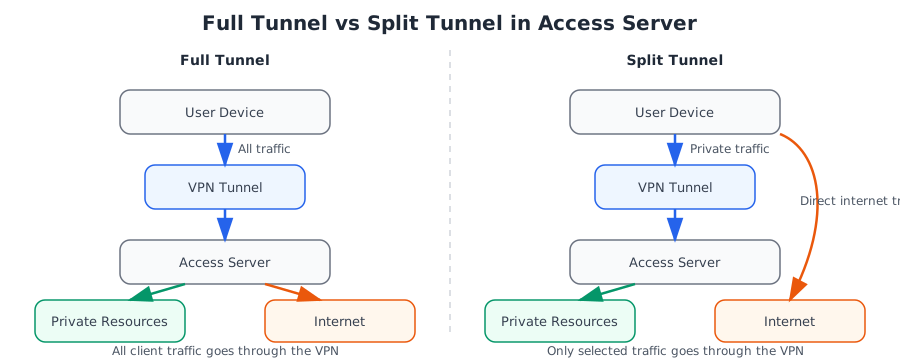
Sign in to the Admin Web UI.
Click Configuration → VPN Settings.
Under Routing, select your desired tunnel configuration:
For full tunnel: Set Should client Internet traffic be routed through the VPN? to Yes.
For split tunnel: Set Should client Internet traffic be routed through the VPN? to No.
Connect to the console and get root privileges.
Switch to the scripts directory:
cd /usr/local/openvpn_as/scripts/
Configure full tunneling:
./sacli --key "vpn.client.routing.reroute_gw" --value "true" ConfigPut
./sacli start
Configure split tunneling:
./sacli --key "vpn.client.routing.reroute_gw" --value "false" ConfigPut
./sacli start
Important
This override can only be configured using the CLI.
Connect to the console and get root privileges.
Switch to the scripts directory:
cd /usr/local/openvpn_as/scripts/
Enable split tunneling without pushing DNS:
./sacli --user <USER_OR_GROUP> --key "prop_reroute_gw_override" --value "disable" UserPropPut
Enable split tunneling while still pushing DNS:
./sacli --user <USER_OR_GROUP> --key "prop_reroute_gw_override" --value "dns_only" UserPropPut
Refresh the Access Server configuration:
./sacli start
Important
This method simulates full tunneling by routing all traffic using two large subnets:
0.0.0.0/1128.0.0.0/1
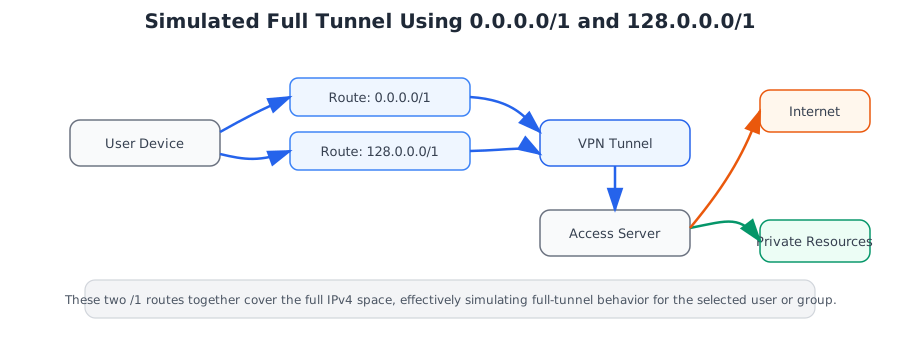
Configure using Admin Web UI for users
Sign in to the Admin Web UI.
Click User Management → User Permissions.
Find your user, and click the More Settings icon.
Under Access Control, add
0.0.0.0/1and128.0.0.0/1to the Allow Access To these Networks field.
Configure using Admin Web UI for groups
Sign in to the Admin Web UI.
Click User Management → Group Permissions.
Find your group, and click the More Settings icon.
Set Access Control to Yes.
Add
0.0.0.0/1and128.0.0.0/1to the Allow Access To networks and services field.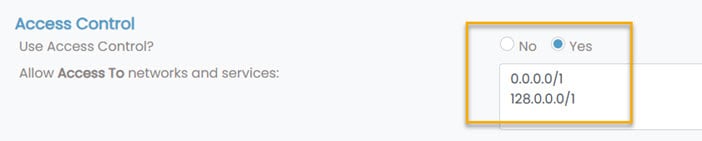
Configure using CLI for users or groups
Connect to the console and get root privileges.
Switch to the scripts directory:
cd /usr/local/openvpn_as/scripts/
Use these commands to enable full tunnel for a user, without changing DNS settings:
./sacli --user <USER_NAME> --key "type" --value "user_compile" UserPropPut
./sacli --user <USER_NAME> --key "access_to.0" --value "+NAT:0.0.0.0/1" UserPropPut
./sacli --user <USER_NAME> --key "access_to.1" --value "+NAT:128.0.0.0/1" UserPropPut
Use these commands to enable full tunnel for a group, without changing DNS settings:
./sacli --user <GROUP_NAME> --key "access_to.0" --value "+SUBNET:0.0.0.0/1" UserPropPut
./sacli --user <GROUP_NAME> --key "access_to.1" --value "+SUBNET:128.0.0.0/1" UserPropPut
Refresh the Access Server configuration:
./sacli start